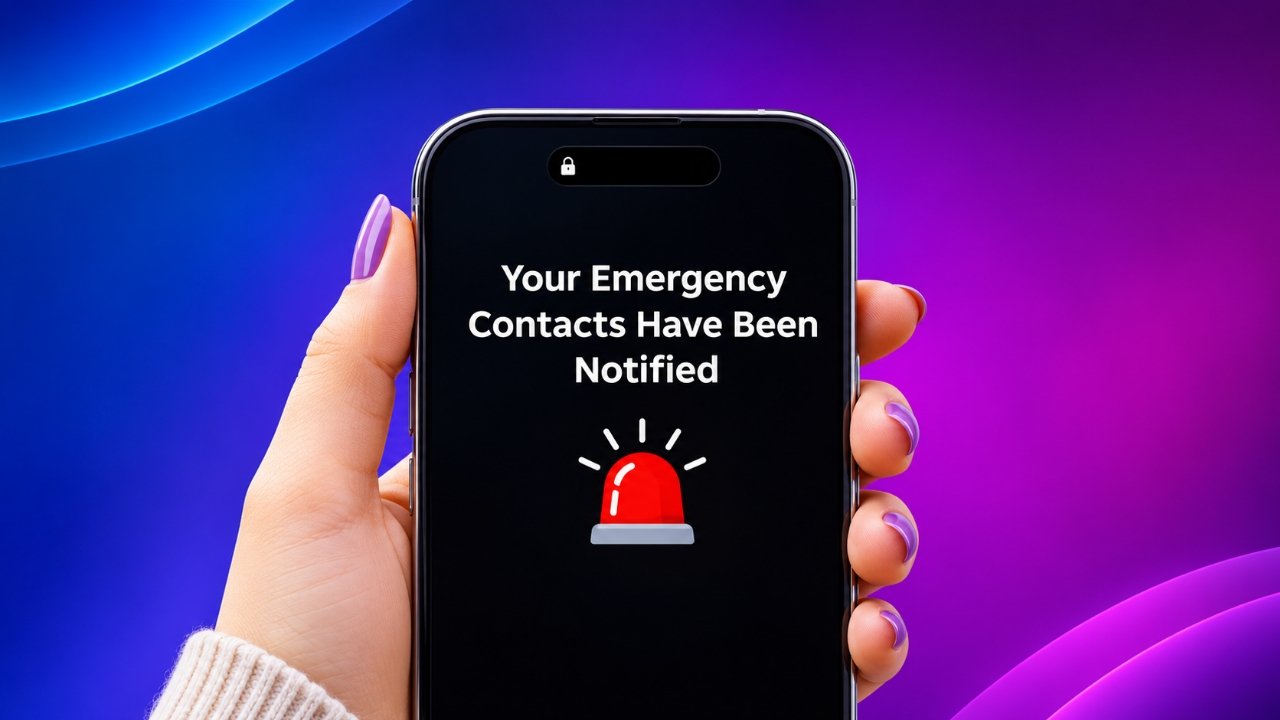
An iPhone displaying the message “Your Emergency Contacts Have Been Notified” can be confusing, especially when the screen stops responding to normal touch controls. This message is associated with Apple’s Emergency SOS feature, which is designed to help users contact emergency services and notify selected people when urgent assistance is needed.
Although seeing this screen does not necessarily mean your iPhone has a serious problem, getting stuck on it can be frustrating. The good news is that several troubleshooting methods may help restore normal functionality without requiring a visit to a repair centre.
In this guide, we’ll explore why an iPhone may become unresponsive on the Emergency SOS screen, how to get out of it, and which settings you can adjust to reduce accidental SOS activations in the future.
Also Read: How to Turn Off an iPhone Using a Computer
Why Does an iPhone Get Stuck on the Emergency SOS Screen?
Emergency SOS is an important iPhone safety feature. When activated, it can connect users with emergency services and send notifications, including location information, to designated emergency contacts.
Apple explains that an iPhone may remain in SOS mode temporarily after the feature has been activated. This allows emergency services to call back if necessary. However, the device should not remain permanently frozen on the notification screen.
If your iPhone continues displaying the emergency notification without responding, a temporary software issue may be responsible.
There are several possible reasons for this behaviour:
1. Accidental activation of Emergency SOS
The Emergency SOS shortcut can be triggered by pressing certain physical buttons. Depending on your settings and iPhone model, pressing the Side button repeatedly or holding it together with a Volume button may start the emergency process.
2. Unintended button presses
Your iPhone may activate Emergency SOS while sitting inside a tightly packed bag or pocket. Accidental button combinations can also occur when someone handles the device without realising how the shortcuts work.
3. Temporary iOS software glitches
A software malfunction can sometimes prevent the iPhone from leaving the Emergency SOS screen normally. This may happen even when the emergency feature itself has been activated correctly.
4. Problems during system operation
In some situations, an interrupted software process or another system-related issue may cause the device to become unresponsive.
Regardless of the cause, trying a few basic troubleshooting techniques is a sensible first step.
How to Fix an iPhone Frozen on the Emergency Contacts Notification
Before attempting complicated solutions, try the following methods in order. Start with a force restart because it can resolve many temporary software problems without deleting your personal information.
1. Force Restart Your iPhone
A force restart is one of the most effective ways to deal with an iPhone that is not responding to touch commands.
Unlike a regular restart, this method uses physical buttons to reboot the device. It does not normally erase your photos, applications, messages, or other personal information.
The button combination depends on your iPhone model.
For iPhone 8, iPhone SE (2nd and 3rd generation), and newer models:
- Quickly press and release the Volume Up button.
- Quickly press and release the Volume Down button.
- Press and hold the Side button.
- Continue holding it until the Apple logo appears.
- Release the button and allow the device to restart.
For iPhone 7 and iPhone 7 Plus:
- Press and hold the Volume Down and Side buttons simultaneously.
- Keep holding both buttons until the Apple logo appears.
- Release the buttons and wait for the iPhone to restart.
For iPhone 6s, iPhone 6s Plus, iPhone SE (1st generation), and older compatible models:
- Press and hold the Home button and the Side or Top button together.
- Continue holding both buttons until the Apple logo appears.
- Release the buttons and allow the device to boot normally.
Once the restart is complete, check whether the Emergency SOS notification has disappeared.
2. Switch Off Your iPhone and Connect It to a Charger
If a force restart does not resolve the issue, try powering down your iPhone and giving it some time to recharge.
Follow these steps:
- Turn off your iPhone if the controls allow you to do so.
- Connect it to a compatible charging adapter.
- Leave it charging for approximately one hour.
- Turn the device back on.
- Check whether the Emergency SOS screen is still visible.
If the iPhone does not respond to the normal shutdown controls, try the force-restart procedure again.
This approach may help if the device is experiencing a temporary power or system-related issue, although it is not guaranteed to resolve every software problem.
3. Update or Restore Your iPhone Using a Computer
When restarting and charging fail, connecting your iPhone to a computer may provide another troubleshooting option.
You can use a Mac or a Windows computer to access Apple’s device management and recovery tools.
Using a Mac:
- Connect your iPhone to the Mac with a compatible USB cable.
- Open Finder.
- Select your iPhone from the sidebar.
- Follow the available instructions to manage or recover the device.
Using a Windows PC:
- Connect your iPhone to the computer.
- Open the Apple Devices application, if installed.
- Select your connected iPhone.
- Follow the instructions provided by the application.
If the iPhone is recognised in recovery mode, you may be offered options to update or restore its software.
Choose Update first when available, as this attempts to reinstall iOS without erasing your personal data.
A Restore operation reinstalls the operating system but erases the information stored on the device. Before choosing this option, make sure you have a recent iCloud or computer backup whenever possible.
If the computer does not recognise your device or recovery mode does not resolve the problem, contact Apple Support or visit an authorised Apple service provider.
How to Prevent Accidental Emergency SOS Activation on Your iPhone
Once your iPhone starts working normally, reviewing its Emergency SOS settings can help reduce accidental activations.
You do not necessarily need to disable every emergency feature. Instead, consider adjusting the shortcuts and contact settings according to your preferences.
Turn Off the Three-Button-Press Shortcut
Some iPhone models allow users to initiate Emergency SOS by quickly pressing the Side button five times. If this shortcut is enabled, accidental button presses may trigger the emergency process.
To change this setting:
- Open the Settings application.
- Select Emergency SOS.
- Find the option for calling with repeated button presses.
- Turn off the corresponding shortcut if you do not want to use it.
The exact wording and available options may vary depending on your iPhone model and iOS version.
Review Your Emergency Contacts
Your emergency contacts are the people who may receive notifications when Emergency SOS is used.
It is worth checking this list occasionally to ensure that the correct people are included.
To review or edit your emergency contacts:
- Open Settings.
- Go to Apps and select Health.
- Open Medical ID.
- Tap Edit.
- Scroll to the Emergency Contacts section.
- Add or remove contacts as needed.
- Save your changes.
You can use this section to update contact details when your circumstances change.
Manage Emergency Location Sharing
When Emergency SOS is activated, your iPhone may share your location with emergency services and notify your emergency contacts.
If you want to review the location-related settings, follow these steps:
- Open Settings.
- Select Privacy & Security.
- Tap Location Services.
- Scroll down and open System Services.
- Review the Emergency Calls & SOS option.
Changing location-related settings can affect certain safety features. Consider the consequences before turning them off, particularly if you rely on location sharing during emergencies.
Adjust Other Emergency SOS Shortcuts
If accidental SOS activations are a recurring problem, you can review the available activation shortcuts.
Open Settings and select Emergency SOS. Depending on your device, you may find options such as:
- Call with Hold and Release.
- Call with 5 Button Presses.
- Call After Serious Crash.
You can disable certain manual shortcuts if you prefer to avoid accidental activation.
However, keeping emergency calling features available can be valuable when you genuinely need urgent assistance. The Crash Detection feature, where supported, may also provide an additional safety benefit.
For this reason, it is better to understand each setting before changing it rather than disabling all emergency-related functionality.
When Should You Contact Apple Support?
Most temporary iPhone software issues can be addressed with basic troubleshooting. However, professional assistance may be necessary if:
- Your iPhone repeatedly freezes on the Emergency SOS screen.
- The physical buttons do not respond correctly.
- Your device cannot enter recovery mode.
- A computer cannot recognise your iPhone.
- The Apple logo appears repeatedly without completing startup.
- The device continues restarting unexpectedly.
These symptoms may indicate a more complicated software or hardware problem.
Apple Support or an authorised service provider can help diagnose the issue and recommend an appropriate repair or recovery procedure.
Frequently Asked Questions (FAQs)
Why does my iPhone say “Your Emergency Contacts Have Been Notified”?
This notification generally appears after Emergency SOS has been activated. Your iPhone may send alerts to the people listed in your Medical ID’s Emergency Contacts section, along with relevant location information when supported.
How can I exit the Emergency SOS screen on my iPhone?
If your iPhone is unresponsive, try performing a force restart using the button combination appropriate for your model. This can help the device restart without requiring access to the touchscreen.
Will force restarting my iPhone delete my data?
No. A standard force restart does not erase your personal information. Your photos, applications, contacts, and other stored data should remain intact.
However, restoring an iPhone through a computer is different and can erase its contents.
Why does Emergency SOS activate accidentally?
Accidental activation can happen when physical buttons are pressed in an unintended combination. This may occur while carrying the iPhone in a pocket or bag, or when someone accidentally presses its buttons.
Reviewing the Emergency SOS shortcuts in Settings can help reduce the chances of this happening.
Can I completely disable Emergency SOS on my iPhone?
Apple does not provide a single setting that completely removes Emergency SOS from the device. However, you can disable certain manual activation shortcuts through Settings > Emergency SOS.
Some emergency-related functions may remain available depending on your iPhone model and software version.
What should I do if my iPhone remains frozen after a force restart?
If the device continues displaying the same message, try charging it and connecting it to a Mac or Windows computer. You may be able to use recovery mode to update or restore iOS.
If these steps do not work, contact Apple Support for further assistance.
Also Read: How to Share Files and Folders in Google Drive
Final Thoughts
An iPhone stuck on the “Your Emergency Contacts Have Been Notified” screen can be inconvenient, but it does not automatically mean that your device is permanently damaged.
A force restart is usually the best starting point because it can resolve temporary software problems without removing personal data. If that does not help, charging the device or using a computer to access recovery options may be worth trying.
It is also a good idea to review your Emergency SOS shortcuts and emergency contacts once your iPhone is working again. While reducing accidental activations is useful, remember that Emergency SOS is an important safety feature that could prove valuable when urgent help is needed.
Advertisements