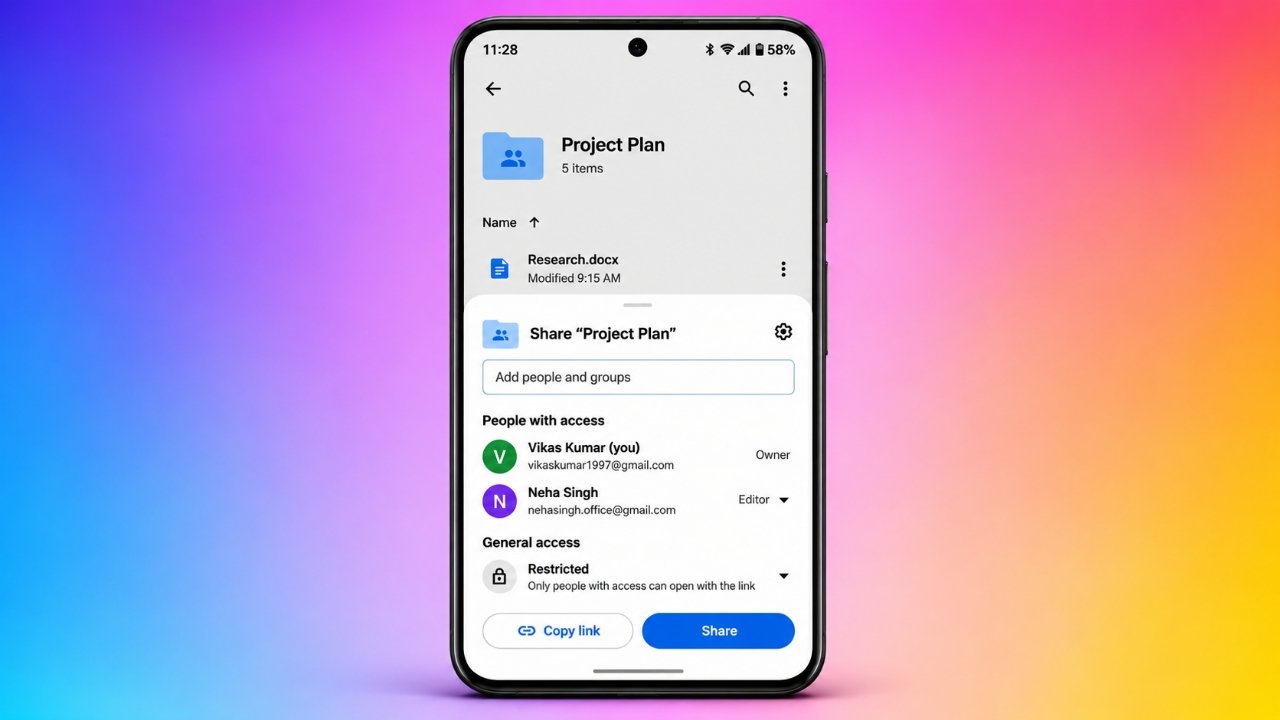
Google Drive makes it easy to store documents online and share them with other people. Whether you need to send a single file, collaborate on a document, or give someone access to an entire folder, the platform provides several convenient sharing options.
Users can share content through email invitations or generate links that others can use to access their files. They can also decide whether recipients are allowed to view, comment on, or edit shared content.
Understanding these features can help you manage your documents more efficiently while maintaining control over who can access your information.
Also Read: How to Forward Incoming Calls on Your Smartphone
Different Ways to Share Content on Google Drive
Google Drive supports multiple sharing methods, allowing users to choose an approach that suits their needs.
The two most common options are:
- Email invitations: Send access requests directly to specific email addresses.
- Link sharing: Generate a URL that recipients can use to open the selected file or folder.
Both methods are available on desktop computers and mobile devices. However, the permissions and access settings should be checked before sharing anything, particularly when documents contain private information.
Setting Up a Shared Drive on a Computer
Shared drives are useful for teams, organizations, and groups that regularly work with common documents. Unlike personal storage, files in a shared drive belong to the team rather than an individual user.
Here is how to create one:
- Visit Google Drive and sign in to your account.
- Find the Shared drives section in the navigation panel.
- Select the New option.
- Enter a descriptive name for your shared drive.
- Click Create to finish the process.
- Upload new documents or move eligible files from your existing Drive storage.
Once the shared drive is ready, you can organize its contents and invite other members according to your collaboration requirements.
Note: Creating shared drives generally requires an eligible Google Workspace account. Availability and permissions depend on your account and organization settings.
Organizing Shared Content on Mobile Devices
If you primarily use a smartphone, you can still organize documents and folders through the Google Drive application.
To create a regular folder:
- Launch the Google Drive app.
- Sign in if you have not already done so.
- Tap the + (Plus) button.
- Select New folder.
- Enter a name that describes the folder’s contents.
- Tap Create.
- Upload files from your device or move existing Drive documents into the folder.
You can then share the folder with other users whenever necessary.
Keep in mind that creating a folder is different from creating a shared drive. Shared drives have separate eligibility and management requirements.
Sharing Files Through Email Invitations
Email-based sharing is a practical option when you want to give access to particular individuals rather than everyone who receives a link.
Follow these instructions on a desktop computer:
- Open Google Drive and locate the file or folder you want to share.
- Right-click the selected item.
- Choose Share from the context menu.
- Enter the email address of the intended recipient.
- Add additional email addresses if you want to share with multiple people.
- Select an appropriate access permission.
- Include an optional message explaining what you are sharing.
- Check the notification option if you want Google to inform recipients.
- Click Send to complete the process.
Google Drive provides three main permission levels:
- Viewer: Recipients can open and view the shared content.
- Commenter: Users can view the content and add comments where supported.
- Editor: Recipients can make changes to the shared content, subject to the available permissions.
Choose the permission level carefully to avoid giving people more access than they actually need.
Sharing Through the Google Drive Mobile App
The mobile application offers a similar process.
Open Google Drive and find the document or folder you want to share. Tap the three-dot menu next to the item and select Share.
Enter the recipient’s email address, select the appropriate permission, and add a message if required. Finally, tap Send.
The recipient will receive an invitation to access the selected content.
Sharing Files With a Link
Sometimes, sending individual email invitations is inconvenient. In such situations, link sharing provides a quicker alternative.
Google Drive allows users to generate a link and decide whether access should remain restricted or be available to anyone who has the URL.
Generate a Sharing Link on Desktop
To create a link using your computer:
- Open Google Drive.
- Locate the file or folder you want to distribute.
- Right-click the selected item.
- Click Share.
- Find the general access section.
- Change the setting from Restricted to Anyone with the link, if appropriate.
- Select Viewer, Commenter, or Editor access.
- Click Copy link.
- Select Done to save the sharing settings.
You can now paste the copied URL into an email, messaging application, or another communication platform.
Remember that anyone with an unrestricted sharing link may be able to access the content. Avoid using this option for confidential documents.
Create a Sharing Link on a Smartphone
The same feature is available through the Google Drive mobile application.
Follow these steps:
- Open the app and locate the required file or folder.
- Tap the three-dot menu beside the item.
- Select Share.
- Look for the general access or link-sharing settings.
- Change the access option to Anyone with the link, if you want broader access.
- Choose the permission level.
- Tap Copy link.
- Send the copied URL to your intended recipients.
The exact wording and location of these options may vary depending on your device and application version.
Sharing Multiple Files at Once
Google Drive also allows desktop users to select multiple files before sharing them.
On Windows, hold down the Ctrl key while clicking the files you want to select. On a Mac, use the Command key instead.
After selecting the files, right-click and look for the sharing option.
Depending on the selected items and their existing permissions, Google Drive may allow you to manage their access together. If the files have different sharing settings, you may need to review them individually.
How to Update or Remove Sharing Permissions
Sharing a document does not mean you lose control over it. Google Drive provides settings that let you review and modify access whenever necessary.
To manage permissions:
- Locate the shared file or folder.
- Open its sharing settings.
- Review the list of people who currently have access.
- Change an individual’s permission from Editor to Viewer or another available level.
- Remove access when someone no longer needs it.
- Save your changes if prompted.
You can also adjust general link access.
For example, if you previously selected Anyone with the link, you can switch the setting back to Restricted. This limits access to approved users, although existing individual permissions may remain active.
It is a good idea to review shared documents occasionally, especially when working with business files or personal information.
Finding Documents Shared by Other People
Google Drive includes a dedicated section for locating files that other users have shared with you.
On a computer, open Google Drive and select Shared with me from the left navigation menu.
On a smartphone, open the application and navigate to the Shared section.
From there, you can browse accessible documents and folders without searching through your personal storage.
If you regularly work with shared files, organizing important documents and adding shortcuts to your Drive can make them easier to find later.
Important Google Drive Storage and Upload Considerations
Before transferring large amounts of information, it is worth understanding some of Google Drive’s technical limitations.
Google applies different upload, storage, and file-conversion restrictions depending on the account type and file format.
Here are a few useful points:
- Daily upload limit: Google Drive generally has a 750 GB daily upload and copy limit per user across My Drive and shared drives. The limit applies to files uploaded or copied, and additional uploads may be restricted after reaching it.
- Google Docs: Converted documents have a maximum size of 50 MB.
- Google Sheets: Converted spreadsheets have a maximum size of 10 million cells, subject to other format-specific limitations.
- Internet connection: A stable connection helps prevent interruptions during large uploads and downloads.
- Offline access: Changes made offline may take time to synchronize when the device reconnects to the internet. Reviewing synchronization status can help prevent confusion.
These limits may change, so checking Google’s official documentation is recommended when handling particularly large files.
For more information, visit the Google Drive Help Center.
Also Read: What Is Grok AI? A Complete Guide to Using Grok on Your iPhone
Final Thoughts
Sharing files and folders through Google Drive is a straightforward way to collaborate, exchange documents, and keep important information accessible.
Users can choose email invitations when they want to share content with specific individuals or use link sharing when a simpler distribution method is more convenient. Permission controls provide additional flexibility by allowing access to be adjusted or removed whenever needed.
For teams and organizations, shared drives offer another useful way to organize documents and manage collaborative work.
By choosing the right sharing method, checking access permissions, and reviewing shared content regularly, you can make better use of Google Drive while keeping your files organized and appropriately protected.
Advertisements