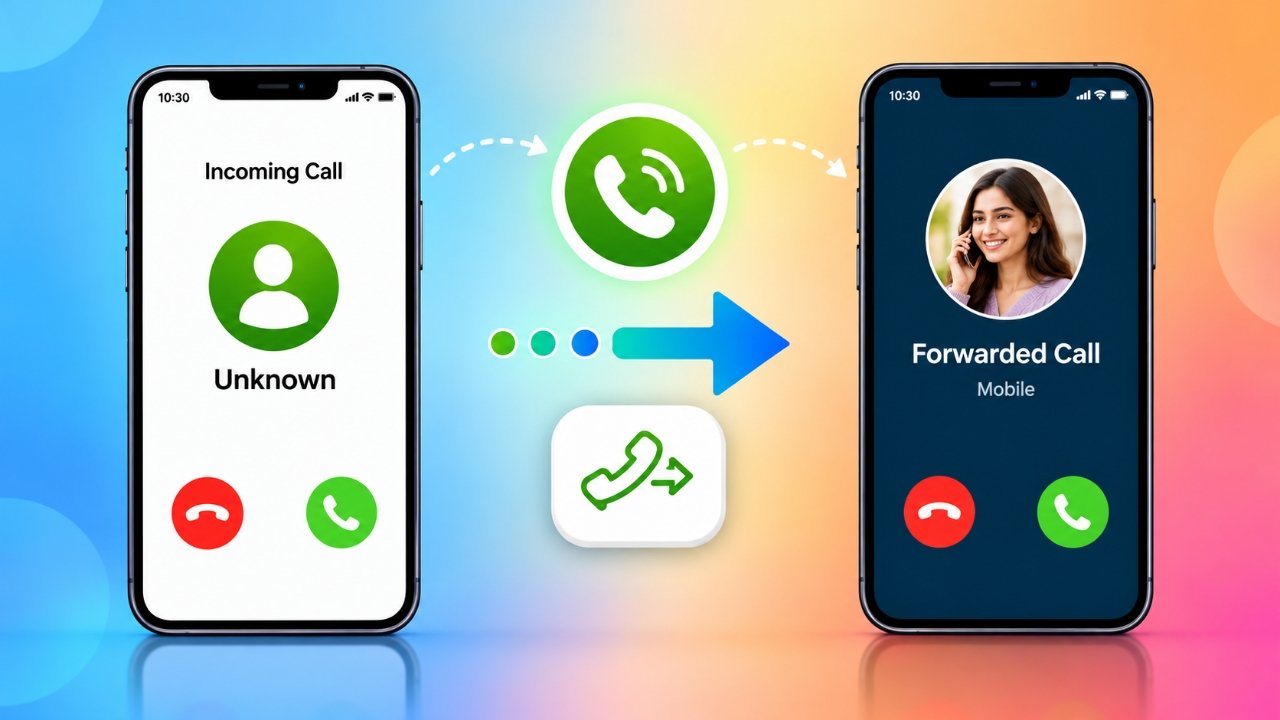
Missing an important phone call can be inconvenient, especially when you are traveling, working, or dealing with poor network coverage. Fortunately, call forwarding offers a practical way to redirect incoming calls to another phone number, helping you stay connected when you cannot answer your primary phone.
Most modern smartphones support call forwarding through their built-in settings. However, finding the right options and configuring them correctly can sometimes be confusing. A dedicated call forwarding app, such as the one described in this guide, may provide a simpler interface for managing different forwarding preferences.
In this article, you will learn what call forwarding is, which options are commonly available, how to set up a call forwarding app, and what to consider before activating the feature.
Also Read: How to Delete Call History on Android and iPhone
What Is Call Forwarding and How Does It Work?
Call forwarding is a phone feature that redirects incoming calls to another number according to your selected settings. For example, you might forward calls from your personal phone to your office number when you are busy or send calls to a different device while traveling.
Depending on your mobile carrier, you may be able to forward every incoming call or activate forwarding only under certain conditions, such as when you do not answer or your phone is unreachable.
A call forwarding application can make these settings easier to access by providing a dedicated interface. However, the actual forwarding functionality generally depends on your phone, carrier, and supported network services. Installing an app does not necessarily add support for a feature that your carrier does not provide.
Key Features to Look for in a Call Forwarding App
A useful call forwarding app should make it easy to select a forwarding option, enter the destination number, and manage activation settings.
Here are some common features you may find in these applications:
- Unconditional call forwarding: Redirects all incoming calls to another number.
- Forwarding when unanswered: Sends calls to a selected number if you do not pick up.
- Forwarding when unreachable: Redirects calls when your phone cannot be reached, subject to carrier support.
- Conditional forwarding: Allows forwarding based on supported conditions, such as a busy line or unanswered call.
- Simple activation controls: Makes it easier to enable or disable a forwarding option.
- User-friendly interface: Organizes forwarding settings in one place for convenient access.
- Call waiting settings: Some apps provide access to call waiting controls, depending on device and network compatibility.
The availability of these options can vary. Before choosing an application, check its description, compatibility information, permissions, and recent user reviews.
How to Download and Install the Call Forwarding App
If you want to try the Call Forwarding app published by Android Buddy, follow these steps to locate and install it.
- Open the Google Play Store on your Android smartphone.
- Enter Call Forwarding by Android Buddy in the search bar.
- Check the developer name and app details to make sure you have selected the intended application.
- Review the app’s permissions, compatibility, and available information.
- Tap Install if the application meets your requirements.
- Once installation is complete, open the app and review its setup instructions.
App availability and menu layouts can change over time. If you cannot find the exact application, you can also check whether your smartphone offers call forwarding through its built-in phone settings.
How to Set Up Call Forwarding on Your Phone
After installing a compatible application, you can configure call forwarding by following the instructions provided within it. The exact steps may differ depending on your device and mobile network.
Step 1: Open the application
Launch the Call Forwarding app and look at the available options on its main screen.
Step 2: Choose a forwarding option
Depending on the app and carrier, you may see options such as All Calls, Not Answered, Not Reachable, or All Conditional. Select the option that matches your needs.
Step 3: Enter the destination number
Type the phone number to which you want incoming calls to be redirected. Double-check the number before continuing to avoid sending calls to the wrong destination.
Step 4: Activate the setting
Tap the activation control, such as Activate, if it is available. The app may communicate with your carrier to apply the selected forwarding setting.
Step 5: Confirm that forwarding is enabled
Follow any confirmation messages shown by the app or your phone. If the setting does not activate, check your network connection and contact your mobile carrier to verify that the service is supported.
Important: Some forwarding options require carrier support and may incur additional charges. Check your mobile plan before using the feature regularly.
Can Call Forwarding Work When Your Phone Is Switched Off?
In some cases, calls can be redirected even when your phone is switched off, but this depends on how the forwarding service is configured.
For example, a carrier-supported unreachable condition may redirect calls when your device is powered off or outside network coverage. This does not mean that every call forwarding app can independently forward calls without network or carrier support.
If you want calls to reach another number while your phone is unavailable, check whether your carrier supports forwarding for unreachable devices and confirm that the setting has been activated successfully.
Why Should You Use a Call Forwarding App?
Call forwarding can be useful in several everyday situations. It gives you another way to manage incoming calls when answering your primary phone is inconvenient.
For professionals: You can redirect calls to a work number when you are handling business responsibilities or using a different device.
For frequent travelers: Forwarding may help you receive calls on an alternative number when your usual phone is unavailable, provided your carrier supports the arrangement.
For busy users: If you cannot answer calls immediately, conditional forwarding may help direct them elsewhere.
For people using multiple phones: Call forwarding can simplify call management when you regularly switch between personal and work devices.
Before activating forwarding, remember that it generally redirects calls rather than copying them to multiple phones. You should also confirm whether call charges, roaming fees, or other restrictions apply.
Call Forwarding App vs. Built-In Phone Settings
You may not need to install an additional application to forward your calls. Many Android smartphones provide call forwarding options within the Phone app.
To check, open your phone’s dialer, navigate to its settings, and look for a section related to calling accounts or supplementary services. The precise menu names vary by manufacturer, Android version, and carrier.
A dedicated application may offer a more convenient interface, while built-in settings can be sufficient for basic forwarding needs. Choose the method that works reliably with your device and mobile network.
Install
Also Read: How to Delete WhatsApp Call History on Android and iPhone
Final Thoughts
Call forwarding is a convenient way to manage incoming calls when you are busy, traveling, or unable to access your primary phone. Depending on your mobile carrier, you can redirect all calls or activate forwarding under specific conditions.
A dedicated application such as Call Forwarding by Android Buddy may help simplify the setup process, while your smartphone’s built-in settings offer another option. Before activating the service, verify the available features, enter the correct destination number, and check for any applicable charges.
With the right configuration, call forwarding can make everyday communication easier and help ensure that important calls have an alternative destination when you cannot answer your phone.
Disclaimer: This article is for informational purposes only. App features, availability, and call forwarding procedures may change. Actual functionality depends on your device and mobile carrier. Check the app’s official listing and your carrier’s terms for the most accurate information.
Advertisements