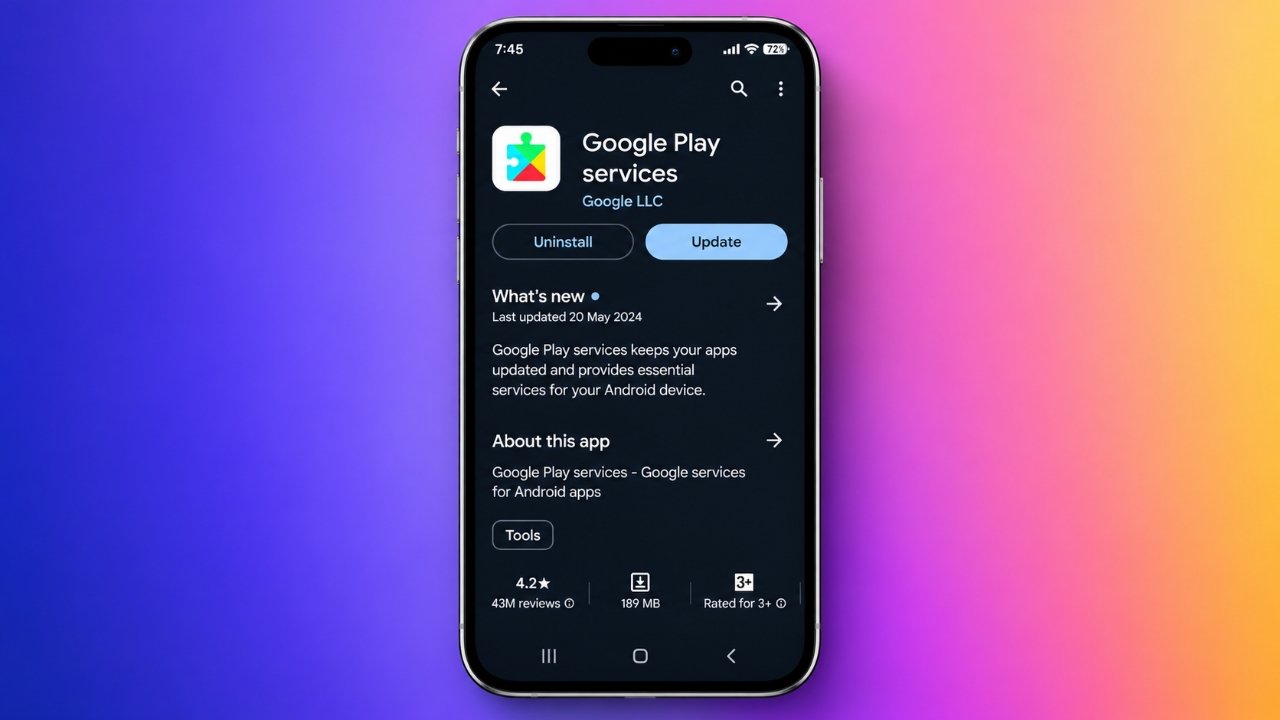
Google Play Services is an essential component of the Android operating system. It helps apps connect with Google services, supports account authentication, and provides features that many applications need to function correctly.
Although it runs quietly in the background, keeping Google Play Services updated can help maintain compatibility, fix certain bugs, and support important security features. Most Android devices manage updates automatically, but sometimes you may need to check for an update manually.
In this guide, you will learn how to update Google Play Services, explore an alternative installation method, and troubleshoot common problems.
Also Read: How to Forward Incoming Calls on Your Smartphone
Key Things to Know Before Updating
- Automatic updates: Google Play Services usually updates automatically when conditions allow.
- Manual updates: Checking for updates can help when certain Google-related features stop working properly.
- Device compatibility: Available versions depend on your Android version and device configuration.
- Security: Downloading installation files from third-party websites requires extra caution.
- Troubleshooting: Updating may fix some software problems, but it will not resolve every performance issue.
Method 1: Update Google Play Services Through the Play Store
The Google Play Store is the preferred place to obtain official updates. However, Google Play Services may not appear in ordinary searches, so accessing its listing through your phone’s settings can be easier.
Follow these steps to check for an update:
- Open the Settings app on your Android phone.
- Navigate to Apps or App management.
- Select See all apps if this option appears.
- Find and tap Google Play Services.
- Scroll through the app information screen and look for App details in store or a similar option.
- Tap the option to open its Google Play Store listing.
- If an Update button appears, tap it and follow the on-screen instructions.
Menu names may vary depending on your phone manufacturer and Android version. Samsung, Google Pixel, and other Android devices may display slightly different options.
If you see an Open button instead of Update, or no update option appears, your device may already have a suitable version installed. Updates can also roll out gradually, meaning a newer release might not be available to every device immediately.
Method 2: Update Google Play Services Using APKMirror
Sometimes, users may find a compatible update through a third-party APK repository before it becomes available through their usual update process. One such repository is APKMirror.
However, manual installation is generally unnecessary for most users. It also involves additional compatibility and security risks if you select the wrong package.
If you decide to use this method, follow these precautions.
Step 1: Check Your Current Version
Open Settings, navigate to Apps, and select Google Play Services. Look for the version information on the app details screen.
Knowing your installed version can help you compare it with available releases.
Step 2: Visit a Reputable APK Repository
Open your browser and visit APKMirror. Search for Google Play Services and review the available versions.
Choose a stable release rather than a beta version unless you specifically need to test pre-release software.
Step 3: Verify Device Compatibility
Google Play Services has different package variants for different Android environments and device configurations. The appropriate version depends on factors such as your Android version and device architecture.
Do not assume that every modern Android phone uses the same package. An incompatible file may produce an installation error or cause other problems.
Also, check whether the download is a standard APK or an app bundle. Some packages require a compatible installer rather than the built-in Android package installer.
Step 4: Install the Compatible Package
If you have verified that the file is compatible and comes from a trustworthy source, open the downloaded file and follow Android’s installation instructions.
Your phone may ask you to authorize installation from that source. Allow this permission only when necessary, and disable it again afterward if you enabled it temporarily.
If installation fails, avoid repeatedly trying random package variants. Instead, return to the standard update method or wait for an official update compatible with your device.
Important: APKMirror is a third-party repository, not Google’s official distribution channel. Avoid modified APKs, unfamiliar download websites, and files that request unnecessary permissions.
Why Should You Keep Google Play Services Updated?
Google Play Services supports many features that Android applications use behind the scenes. Keeping it compatible with your device and apps can help these features work as expected.
1. Improved App Compatibility
Many applications rely on Google Play Services for functions such as account sign-in, location-related features, and communication with Google APIs.
Updates can address compatibility problems that affect these functions and help supported apps continue working correctly.
2. Bug Fixes and Stability Improvements
Software updates sometimes resolve errors that cause Google-powered features to behave unexpectedly.
If a problem is related to a known bug in Google Play Services, installing an appropriate update may help fix it.
3. Support for Security Features
Google Play Services contributes to several security-related functions on Android devices.
For example, Google Play Protect helps check applications for potentially harmful behavior and can warn users about security risks. Android also receives Google Play system updates for certain system components independently of traditional operating system updates.
These mechanisms are related but distinct. Updating Google Play Services does not necessarily update every Android security component.
4. More Reliable Everyday Functionality
Various apps, including navigation tools, games, and communication applications, may depend on Google Play Services.
Keeping the component compatible with your installed apps can reduce problems associated with outdated software. However, updates do not guarantee faster performance, better battery life, or improvements in every application.
Can Google Play Services Affect Battery Life and Mobile Data?
Google Play Services performs background tasks, so its battery and data consumption can vary depending on your device, installed apps, account activity, and settings.
If you notice unusually high battery consumption, frequent overheating, or unexpected mobile data usage, updating Play Services may help if a software bug is responsible. However, these symptoms can also result from other apps, weak network signals, background synchronization, or battery-related problems.
You can investigate by checking your phone’s battery and data usage settings.
If the problem continues, try these steps:
- Restart your phone.
- Install pending Android and Google Play system updates.
- Review which apps consume the most battery or mobile data.
- Check whether the issue started after installing a particular app or update.
- Consult your phone manufacturer’s support resources if the problem persists.
Avoid assuming that Google Play Services is responsible simply because it appears prominently in your battery usage list. Its activity may support tasks performed by other applications.
Google Play Services vs. Google Play Store
Although their names are similar, Google Play Services and the Google Play Store have different purposes.
| Feature | Google Play Services | Google Play Store |
|---|---|---|
| Main purpose | Provides background services and APIs used by apps | Allows users to discover and install applications |
| Updates | Generally managed automatically | Distributes updates for supported apps |
| Security role | Supports certain security and device features | Helps distribute apps and supports app-related security checks |
| User interaction | Usually operates in the background | Used directly to browse and manage apps |
Understanding this difference can help you choose the correct troubleshooting method when an Android application stops working properly.
Frequently Asked Questions
Can I update Google Play Services without the Play Store?
In some cases, users can manually install a compatible package from a third-party repository. However, this approach is more complicated and carries additional risks. For most users, the standard Google-supported update process is the safer choice.
Why is the Update button missing?
Your device may already have a suitable version installed, a newer release may not have reached your device yet, or the listing may not offer a separate manual update option.
Try checking again later and see whether other Google or Android updates are available.
Is it safe to download Google Play Services APK files?
The risks depend on the source, package integrity, and compatibility. Third-party downloads are not equivalent to installing updates through Google’s standard distribution process.
Avoid modified files and never disable important security protections simply to force an installation.
Should I update Google Play Services regularly?
You generally do not need to check for updates every day. Automatic updates normally handle this task. Checking manually is most useful when troubleshooting a specific problem or when you have reason to believe an update is available.
Will updating Google Play Services make my phone faster?
Not necessarily. Updates may fix bugs or improve compatibility, but they cannot guarantee a noticeable speed improvement. Overall performance also depends on your phone’s hardware, available storage, operating system, and installed applications.
Also Read: What Is Grok AI? A Complete Guide to Using Grok on Your iPhone
Final Thoughts
Google Play Services plays an important role in helping Android applications and Google features work together. For most users, allowing automatic updates and checking through the phone’s settings when a problem occurs is sufficient.
Manual APK installation is an alternative for specific situations, but it requires careful attention to compatibility and security. Whenever possible, use the standard update process, keep your Android software current, and investigate battery or performance problems before assuming Google Play Services is the cause.
Following these practices can help you maintain a more reliable Android experience without taking unnecessary risks.
Advertisements