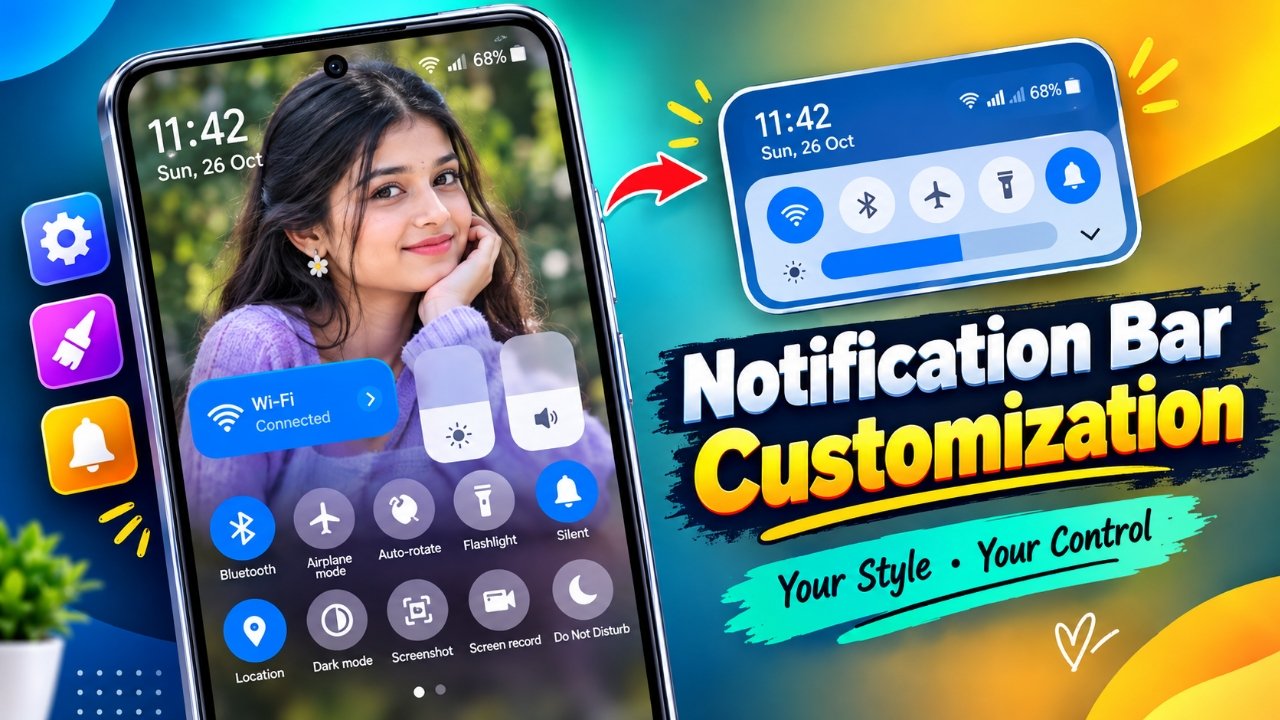
Android gives users plenty of opportunities to personalize their smartphones, from changing wallpapers and icons to selecting widgets and applying different themes. However, customization does not have to stop at the home screen. The status bar and notification panel can also play an important role in creating a more personalized mobile experience.
Notification Bar Customization is an Android personalization app designed to offer additional ways to modify the appearance of these interface elements. Its advertised features include status bar color options, personalized notification backgrounds, text styling, theme settings, and shortcuts to commonly used phone functions.
For users who enjoy experimenting with their phone’s appearance, the app may provide another way to create an interface that suits their preferences. The available features and their performance, however, can vary depending on the installed app version, Android release, and device compatibility.
Why Customize Your Android Notification Panel?
The notification panel is an essential part of everyday smartphone use. It allows users to view incoming alerts, check reminders, and access frequently used settings without navigating through multiple menus.
On many Android devices, the default interface offers some personalization options. Dedicated customization apps may provide additional choices for users who want to change the panel’s colors, background, or text appearance.
Notification Bar Customization focuses on these possibilities, bringing together visual adjustments and convenient access to selected phone functions.
The main advantage is the opportunity to tailor the interface to your preferences. Whether you prefer a clean, minimal design or a colorful appearance, the right combination of settings can make your phone feel more personal.
Keep in mind that the app’s advertised capabilities should not be treated as a guarantee that every feature will work on every device.
Make Your Status Bar Match Your Style
The status bar displays useful information, including the time, battery level, and network connectivity. Although its appearance is often controlled by Android itself, certain customization tools may offer additional styling options.
Depending on the features supported by your device, Notification Bar Customization may provide options such as:
- Color adjustments: Explore available colors to coordinate the status bar with your wallpaper or preferred theme.
- Battery percentage display: Check whether the app offers supported options for displaying battery information.
- Time presentation: Customize the time display where compatible settings are available.
- Text appearance: Adjust supported text colors, sizes, or font styles.
- Network information: Explore options for changing the appearance of carrier details or related indicators, if supported.
- Signal indicator styling: Check whether the app provides any compatible options for network-related symbols.
These settings can help create a more coordinated visual experience across your phone.
However, not every Android device allows third-party apps to modify system-level indicators. Some adjustments may require specific permissions, while others may only be available through the phone’s built-in settings.
Add a Personal Background to Your Notifications
A personalized notification background can make an otherwise familiar interface feel different. Instead of using only the standard system appearance, users may be able to explore alternative backgrounds or images, depending on the app’s available features.
If image-based customization is supported, you could consider several approaches:
- Use a landscape photograph for a relaxed, natural look.
- Choose a favorite travel picture to add a personal touch.
- Select a subtle gradient that complements your wallpaper.
- Try a simple background that keeps the interface looking organized.
The most important consideration is readability. Notifications often contain reminders, messages, and other useful information, so a background should not make text difficult to see.
For the best everyday experience, choose colors and images that provide enough contrast with notification text and icons. A visually appealing panel is most useful when its information remains easy to understand.
Access Common Phone Functions More Conveniently
Visual changes are only one part of the app’s advertised functionality. Notification Bar Customization also lists shortcuts for selected phone settings, potentially making frequently used controls easier to reach.
Depending on the implementation and Android version, the available options may include the following.
| Setting or shortcut | What it helps you do |
|---|---|
| Wi-Fi | Manage wireless internet connections |
| Mobile data | Access cellular data settings |
| Bluetooth | Connect compatible wireless accessories |
| Flashlight | Control the phone’s built-in light |
| Sound and vibration | Adjust alert preferences |
| Screen rotation | Manage automatic screen orientation |
| Night Mode | Access a supported night-related setting |
| Location | Manage location services |
| Mobile hotspot | Access internet-sharing controls |
| Do Not Disturb | Manage interruptions from alerts |
| Airplane Mode | Access wireless connectivity controls |
| Screenshot | Capture the current screen, where supported |
| Calendar | Open or access calendar-related information |
These shortcuts may be useful for people who regularly adjust their phone settings throughout the day.
Nevertheless, their availability should be verified before relying on them. Android restricts how third-party applications can control certain system functions, and some shortcuts may simply open the relevant settings page rather than change a setting directly.
Testing each control on your device is the best way to determine what it actually does.
Explore Themes for a More Consistent Appearance
A well-designed interface usually feels more cohesive when its colors and visual elements work together. Theme-related options can help users experiment with different looks for their notification panel.
For example, you might prefer a dark appearance that complements a dark wallpaper or a lighter design that feels simple and uncluttered. Where supported, combining a theme with suitable text styling and background choices may help create a more consistent look.
When selecting a design, consider both appearance and usability. Extremely bright colors, complicated patterns, or low-contrast text can make notifications harder to read.
A practical theme should look good while keeping important information easy to recognize in different lighting conditions.
Who Might Benefit From This Android Customization App?
Notification Bar Customization may be worth exploring if you enjoy adjusting the smaller details of your smartphone interface.
It could appeal to users who:
- Want to personalize their notification panel beyond the default options.
- Enjoy experimenting with colors, themes, and text styles.
- Prefer using personal images or alternative backgrounds.
- Frequently access quick settings and want to explore additional shortcuts.
- Like creating a consistent appearance across their Android interface.
On the other hand, the app may offer limited additional value to people who are already satisfied with their phone’s built-in customization tools.
Your decision should depend on the features you actually need, how well the app works on your device, and whether its additional options justify installing another application.
Things to Check Before Installing the App
Before adding a third-party customization tool to your smartphone, it is worth taking a few minutes to review its compatibility, permissions, and privacy practices.
1. Confirm Android compatibility
Check the app’s current listing for its supported Android versions and any known device limitations. Some features may behave differently across manufacturers and operating system releases.
2. Review the permissions carefully
Read the permissions requested during installation and setup. Grant only the access needed for the features you intend to use, and investigate any permission that you do not understand.
3. Consider notification privacy
Notification panels may display private messages, account alerts, and other personal information. Review whether the app requests access to notification content or other sensitive information, and read its privacy policy before granting access.
4. Keep the interface readable
Choose backgrounds and text colors that provide clear contrast. Avoid designs that cover important information or make system indicators difficult to distinguish.
5. Test each feature separately
Try individual visual adjustments and shortcuts one at a time. This helps you understand which options work correctly and makes troubleshooting easier if a feature behaves unexpectedly.
6. Check the latest app details
App features, permissions, and compatibility can change with updates. Consult the current app listing and developer documentation instead of relying entirely on older descriptions.
Following these steps can help you make a more informed decision about whether the app suits your needs.
Official Play Store App Link
Final Thoughts
Notification Bar Customization is designed for Android users who want more options for personalizing their status bar and notification panel. Its advertised capabilities include color adjustments, text styling, custom backgrounds, themes, and shortcuts to selected phone functions.
The appeal lies in the ability to experiment with an interface that is used throughout the day. Custom backgrounds may be attractive to users who enjoy visual personalization, while additional shortcuts could be useful for those who frequently adjust their phone settings.
However, the overall experience depends on the app’s current feature set, requested permissions, and compatibility with your particular device. Not every advertised option will necessarily be available on every Android phone.
If you are interested in exploring more Android customization options, consider reviewing the app’s latest listing and checking whether its features meet your expectations before installing it.
The best customization is not simply about changing how your phone looks. It should also preserve readability, protect your privacy, and make everyday use more convenient.
Frequently Asked Questions
1. What is Notification Bar Customization?
Notification Bar Customization is an Android personalization app intended to provide additional options for changing the appearance of the status bar and notification panel. Its advertised features include visual styling, backgrounds, themes, and shortcuts to selected phone functions.
2. Can I use my own photo as a notification background?
The described feature set includes image-based background customization. However, the ability to select a personal photograph from your gallery depends on the functionality available in the app’s current version and its compatibility with your device.
3. Is it possible to change the Android status bar color?
The app advertises status bar color customization. Whether you can apply a particular color or modify related visual elements depends on your Android version, device manufacturer, and the app’s implementation.
4. Does the app let me customize the battery percentage?
Battery percentage options are included among the described features. However, Android system restrictions may affect whether a third-party app can modify this indicator. Your phone’s built-in battery settings may provide an alternative.
5. Does Notification Bar Customization work on every Android phone?
No. Compatibility can differ between Android versions and device manufacturers. Some functions may require permissions or may not be supported by certain system configurations. Review the latest app information before installing it.
6. Can I control Wi-Fi and Bluetooth through the app?
The advertised shortcuts include Wi-Fi, Bluetooth, and several other commonly used functions. Depending on your device and Android version, a shortcut may open the appropriate settings page rather than directly switch a feature on or off.
7. Is a notification customization app safe to install?
Safety depends on the specific application, its developer, its permissions, and its privacy practices. Review the app’s privacy policy, requested permissions, developer information, and available user feedback. Avoid granting unnecessary access to notification content or personal data.
8. Do I need to install a different launcher?
Not necessarily. A notification customization app may work independently of your existing launcher, depending on how its features are implemented. Check the app’s installation instructions to determine whether any additional setup is required.
9. Can customization affect notification readability?
Yes. Certain backgrounds, colors, and text styles may reduce contrast and make alerts harder to read. Choose a design that keeps notification text and important indicators clearly visible.
10. Should I use this app if my phone already has customization settings?
That depends on your preferences. If your built-in Android settings already provide the colors, themes, and notification options you want, an additional app may not be necessary. Consider installing it only if its supported features offer something useful beyond your existing settings.
Advertisements