A smartphone lock screen can do more than protect your personal information. With the right settings and widgets, it can also become a convenient space for checking essential updates, managing daily activities, and accessing useful shortcuts without repeatedly opening different apps.
Lock screen customization is available on both Android and iOS, although the features and settings vary by device and operating system version. From weather forecasts and calendar reminders to music controls and notification previews, these tools can help make everyday smartphone use more convenient.
In this guide, we will explore useful lock screen features, popular Android customization options, built-in iPhone widgets, and practical ways to create a cleaner, more productive lock screen.
Also Read: How to Forward Incoming Calls on Your Smartphone
How Lock Screen Widgets Make Everyday Tasks Easier
Lock screen widgets are compact information panels that display selected details on your smartphone’s screen. Depending on your device, they may provide quick access to upcoming appointments, weather conditions, reminders, or other useful information.
Instead of opening several applications throughout the day, you can check supported information directly from the lock screen.
Here are some everyday advantages:
- Quick weather checks: View current conditions and forecasts before leaving home.
- Better time management: Keep upcoming appointments and calendar events visible.
- Convenient notifications: Review alerts from supported apps without immediately opening them.
- Easy music controls: Pause songs, skip tracks, or adjust playback when supported.
- Improved organization: Keep frequently used information in one accessible place.
- Reduced unnecessary phone use: Check essential updates without browsing through multiple apps.
The actual features available depend on your smartphone, installed applications, and software version.
Best Android Lock Screen Customization Options
Android devices offer several ways to personalize the lock screen. Depending on the manufacturer and Android version, users may be able to add shortcuts, display notifications, change clock styles, or access supported widgets.
The following tools and features are worth considering when creating a more practical lock screen.
1. AcDisplay
AcDisplay is known for its minimalist approach to displaying notifications. It was designed to make incoming alerts easier to review without requiring users to navigate through the entire phone.
Its historical features included a simple notification interface and an ambient-display-style experience. However, its compatibility and maintenance status should be checked before installing it on a modern Android device.
2. Hi Locker
Hi Locker is a lock screen customization application associated with personalization features such as clock styles, wallpapers, and notification settings.
It may appeal to users who prefer a personalized appearance rather than the default lock screen design. Before downloading it, verify that the version available is compatible with your device and comes from a trustworthy source.
3. Echo Notification Lockscreen
Echo Notification Lockscreen was designed to make notifications easier to manage by grouping alerts into categories. This approach can be useful for people who regularly receive messages, emails, and social media notifications.
Because older customization applications may no longer receive updates, check their current availability, permissions, and compatibility before using them.
4. Built-In Android Lock Screen Settings
For many users, the simplest option is to start with the customization features already provided by their phone manufacturer.
Depending on your device, you may be able to:
- Choose which notifications appear on the lock screen.
- Hide sensitive message content while the phone is locked.
- Customize shortcuts for frequently used functions.
- Change the clock style, wallpaper, or display appearance.
- Use supported widgets or glanceable information features.
These built-in settings are often a good starting point because they reduce the need to install additional software.
5. Glance and Similar At-a-Glance Features
Some Android phones include Glance or comparable lock screen services that display content such as news, entertainment updates, or sports information.
These features can provide quick access to selected content, but their availability varies by device, region, and manufacturer. Users who prefer a distraction-free screen may want to disable content they do not regularly use.
Useful Lock Screen Widgets for iPhone Users
Apple provides several built-in lock screen customization options on supported iPhone models and iOS versions. Users can select widgets that display useful information while keeping important details easy to access.
1. Calendar Widget for Daily Planning
The Calendar widget helps users keep track of upcoming events and appointments. It can be especially helpful for people managing work schedules, classes, meetings, or personal commitments.
Adding calendar information to the lock screen makes it easier to check the day’s plans without navigating through the Calendar app.
2. Smart Stack for Convenient Information
Smart Stack is an Apple feature that combines multiple widgets into a compact, scrollable collection on supported screens.
Depending on the device and software version, it can help users access different types of information without dedicating separate spaces to every widget. Its available behavior differs from the widgets that can be placed directly on the iPhone lock screen.
3. Weather Widget for Quick Updates
The Weather widget provides information such as current temperatures and forecast conditions.
It is useful for planning outdoor activities, commuting, or deciding what to wear. The information displayed depends on the selected location and available weather data.
4. Music Controls for Easier Playback
Music playback controls can appear on the iPhone lock screen when audio is playing through supported applications.
Users can perform common actions, such as pausing playback, resuming a track, or skipping to another song, without opening the music application. Available controls may differ between apps and playback situations.
5. Health and Fitness Information
Apple’s Health and Fitness ecosystem helps users review activity-related information, including movement and exercise progress.
Some fitness details can be accessed through supported widgets, complications, or related interfaces, depending on the device and software version. Not every Health measurement is available as a lock screen widget.
Since health information can be personal, consider whether displaying it on a visible screen suits your privacy preferences.
Pattern Locks and Widgets: What’s the Difference?
Although pattern locks and lock screen widgets are often discussed together, they serve different purposes.
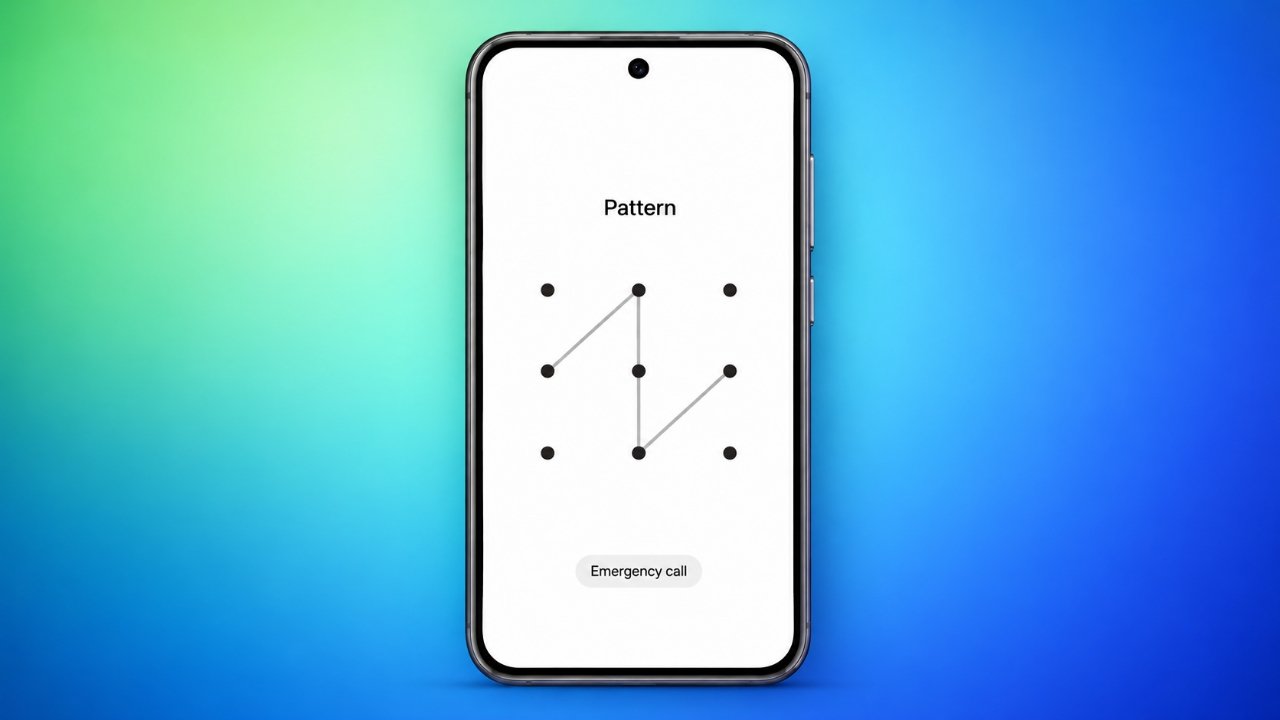
A pattern lock is a security method in which the user draws a specific pattern to unlock a compatible device. Widgets, on the other hand, display information or provide shortcuts.
Installing a widget does not automatically add pattern-based security to a phone. Likewise, changing the lock screen appearance does not necessarily improve the strength of its security.
Android devices may support pattern, PIN, password, or biometric authentication, depending on the model. iPhones generally use a passcode alongside supported biometric options rather than Android-style pattern unlocking.
For better protection, choose a secure authentication method and configure notifications so private message content is not unnecessarily visible while the phone is locked.
Practical Tips for a More Productive Lock Screen
A useful lock screen should make essential information easier to find without creating more distractions. A few small adjustments can improve both its appearance and everyday usefulness.
1. Keep Only the Information You Need
Start with your most frequently used features, such as the calendar, weather, reminders, or music controls. Avoid filling the screen with information that rarely helps you.
2. Review Your Notification Settings
Disable unnecessary alerts and choose whether message previews should appear while the phone is locked. This can make your screen less cluttered and help protect personal information.
3. Choose a Readable Design
Use a wallpaper and clock style that make the time and important information easy to see. A visually appealing screen is most useful when its contents remain legible.
4. Use Built-In Features Before Installing Extra Apps
Your smartphone may already include the customization tools you need. Built-in options can be a practical alternative to third-party applications that require additional permissions.
5. Check App Permissions and Compatibility
Before installing a lock screen customization app, review its permissions, recent updates, developer information, and user feedback. Avoid applications that request access unrelated to their advertised purpose.
6. Protect Sensitive Information
Notifications, calendar entries, and other details may be visible to anyone who can see your screen. Adjust privacy settings to control which information appears before authentication.
7. Reduce Unnecessary Screen Checks
Place your most useful information where you can find it quickly. A well-organized lock screen can reduce the need to open multiple apps, although widgets alone cannot guarantee less screen time.
Frequently Asked Questions
Can I Use Pattern Lock Screen Widgets on Both Android and iPhone?
Both platforms support lock screen customization, but their features differ. Android offers manufacturer-dependent settings and third-party options, while iPhones provide Apple’s built-in lock screen widgets and customization tools. A single application may not support both platforms.
Do Lock Screen Widgets Work Without Unlocking the Phone?
Many widgets display selected information while the phone is locked. However, some actions require authentication or opening the associated application. Access also depends on the widget, device, and privacy settings.
Do Lock Screen Widgets Drain the Battery?
The impact varies depending on the widget and how frequently it updates. Simple widgets generally require less activity than features that frequently retrieve new content or use location services. Removing unnecessary widgets and restricting background activity may help reduce battery use.
Are Third-Party Lock Screen Applications Safe?
Not every application offers the same level of privacy or security. Download apps from trusted sources, review permissions carefully, and check whether the developer continues to maintain the software. Built-in customization features may be sufficient for many users.
Also Read: How to Update Google Play Services on Android for Better Performance
Download From Play Store
Final Thoughts
A thoughtfully customized lock screen can make your smartphone more convenient, organized, and easier to use. Weather updates, calendar reminders, music controls, and notification previews help you access useful information without repeatedly navigating through different applications.
Android users can explore their phone’s built-in settings and compatible customization tools, while iPhone users can take advantage of Apple’s lock screen widgets and related features.
The best setup is not necessarily the one with the most widgets. It is the one that displays the information you need, protects your privacy, and keeps distractions to a minimum.
Advertisements