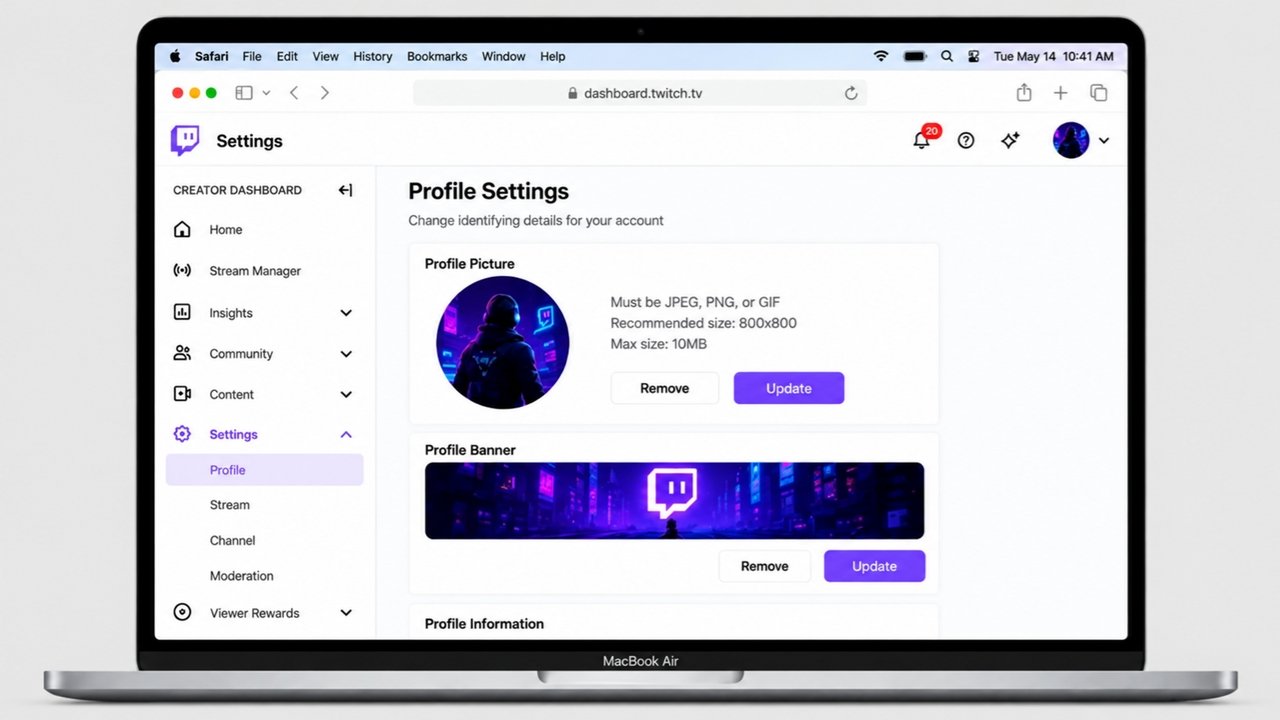
Your profile picture is one of the first things people notice when they visit your Twitch channel. It helps viewers identify your account, recognize you in chat, and remember your content while exploring different streams. Whether you prefer a personal photograph, a gaming logo, or a unique avatar, choosing the right image can give your channel a more polished appearance.
Fortunately, updating your Twitch profile picture is a straightforward process. You can make the change through a desktop browser or, depending on the available settings, the Twitch mobile app.
In this guide, you will learn how to change your Twitch profile picture, select an appropriate image, troubleshoot common upload issues, and make your channel’s appearance more recognizable.
Also Read: How to Set Up and Use Face ID on Your iPhone
Updating Your Twitch Profile Picture on a Computer
If you access Twitch from a laptop or desktop computer, the Creator Dashboard is a useful place to manage your channel’s visual identity. Follow these steps to replace your existing profile picture.
- Visit the official Twitch website and sign in to your account.
- Click your profile icon in the upper-right corner of the page.
- Open the Creator Dashboard from the account menu.
- Find Settings in the sidebar and select Channel.
- Navigate to the Brand section.
- Locate the profile picture area and select the option to upload or change your image.
- Choose the desired picture from your computer.
- Adjust the image if a cropping tool appears, then save or confirm the changes.
After completing these steps, visit your channel to check whether the new picture appears correctly. If the previous image is still visible, refresh the page and give Twitch some time to display the update.
The wording or placement of individual settings may change as Twitch updates its interface, so look for the equivalent channel branding options if your dashboard looks different.
Can You Change Your Twitch Avatar Using a Phone?
Yes, you can check the Twitch mobile app for profile editing options. However, the available controls may differ between Android and iOS devices, as well as between app versions.
Here is how to look for the relevant setting:
- Launch the Twitch app on your smartphone.
- Tap your profile icon to open the account menu.
- Look for an option such as Account Settings or Edit Profile.
- Check whether the menu includes a profile picture or avatar setting.
- If the option is available, select a new image from your phone.
- Adjust the crop if necessary and confirm your changes.
- Return to your profile to see whether the picture has updated.
What if the Picture-Editing Option Is Missing?
You do not need to keep searching through the mobile menus. Open Twitch in a desktop browser and use the Creator Dashboard instead. This is a practical alternative when the mobile app does not provide the setting you need.
Choosing the Right Image Size and File Format
Before uploading a new Twitch profile picture, make sure your image meets the platform’s current requirements. A suitable file can help prevent upload errors and keep your avatar looking sharp.
Consider the following guidelines when preparing your image:
- Image dimensions: A square image measuring 200 × 200 pixels or larger is a reasonable starting point. Check Twitch’s latest specifications before uploading.
- File format: JPEG and PNG are common choices for profile images. Confirm which formats Twitch currently accepts.
- File size: Keep the image within the upload limit displayed by Twitch.
- Image clarity: Use a high-quality image that remains recognizable when reduced to a small size.
- Composition: Position the main subject near the center to reduce the chance of important details being cut off.
Twitch often displays profile pictures in a circular shape across its interface. As a result, the corners of a square image may not be visible. Leave enough space around a face, logo, or character so that the most important features remain inside the visible area.
For the most accurate technical requirements, consult Twitch Help before preparing your file.
Common Twitch Profile Picture Problems and How to Fix Them
An image upload does not always go smoothly. If your new avatar fails to appear or looks different from the original file, try the solutions below.
1. Your Old Profile Picture Is Still Visible
Sometimes, the updated image takes a little while to appear throughout the platform. Your browser or app may also be displaying a previously cached version.
Try refreshing the page, closing and reopening the app, or checking your channel in another browser. If the image has already been saved successfully, waiting briefly may be enough to resolve the issue.
2. Twitch Rejects the Image File
An upload may fail if the image uses an unsupported format or exceeds the permitted file size.
To address this problem, check the current upload requirements and prepare a compatible file. If necessary, resize the image or export it as a JPEG or PNG. Make sure the resulting file remains clear enough for use as a small profile icon.
3. The Picture Will Not Upload
A weak internet connection or a temporary browser issue can interrupt the upload process.
Work through these troubleshooting steps:
- Check that your internet connection is stable.
- Try uploading the image again.
- Open Twitch in a different browser.
- Temporarily disable browser extensions that may interfere with the website.
- Clear the browser cache if other steps do not work.
Keep in mind that clearing cached website data may affect stored site information or require you to sign in again. If the upload continues to fail, check Twitch’s help resources for additional guidance.
4. Important Parts of the Image Are Missing
A profile picture may look different on Twitch because the platform displays it in a circular frame in many locations. Details near the corners of your original image can therefore become invisible.
The easiest solution is to use a square image with the main subject centered. Preview the picture at a small size before uploading it, and move important text or visual elements away from the outer edges.
5. The New Picture Looks Blurry
An image that appears clear on your computer may become difficult to recognize when displayed as a small icon. This can happen when the original file has low resolution or contains too many fine details.
Start with a sharp, high-quality image and avoid enlarging a very small picture. Simple designs, clean shapes, and clear subjects generally work better than complicated artwork at reduced sizes.
How to Choose a Memorable Twitch Profile Picture
A good Twitch profile picture does not have to be elaborate or expensive. The goal is to create an image that reflects your channel and remains easy to recognize.
Here are some practical design tips to consider.
Keep the design easy to identify. A recognizable face, simple logo, or distinctive character can work well. Avoid combining too many elements in a limited space.
Use contrasting colors. A clear difference between the subject and background can help your avatar stand out against different interface colors.
Limit the amount of text. Small lettering is often difficult to read in a profile icon. If your channel has a name or slogan, consider using a symbol or a simplified logo instead.
Make the image suitable for a circular crop. Keep faces, logos, and other important elements away from the edges. Check how the image looks when cropped into a circle.
Maintain a consistent visual identity. Using related colors, artwork, or design elements in your Twitch banner, panels, and other social media profiles can make your channel easier to recognize.
Choose an image that reflects your content. Gaming creators might prefer a mascot, custom illustration, or esports-style logo. Streamers who focus on personal interaction may find that a clear, well-lit portrait is a better fit.
You can experiment with different styles to find one that suits your channel. There is no single design that works for every streamer, so prioritize clarity and personal preference over unnecessary complexity.
Frequently Asked Questions
How often can I change my Twitch profile picture?
You can update your profile picture through Twitch’s available account or channel settings. If you encounter a restriction, follow the message shown by the platform and check its current policies.
Why is my Twitch profile picture not changing immediately?
The updated image may take some time to appear, or your browser or app may still show an older version. Refresh the page, reopen the app, and check again after a short wait.
Can I use my own logo as a Twitch profile picture?
Yes, a logo can be a suitable choice for a Twitch channel, provided it meets the platform’s requirements and you have the necessary rights to use the artwork. A simple design with clear shapes is often easier to recognize at a small size.
Should my Twitch profile picture be square?
A square image is a practical choice because it can be cropped into a circular display without distorting the original proportions. Leave sufficient space around the subject to avoid cutting off important details.
What should I do if I cannot change my profile picture in the app?
Try opening Twitch in a desktop browser and accessing the Creator Dashboard. If the problem persists, review Twitch’s official help documentation for current instructions.
Also Read: Meta Muse India Launch: Expected Release Date, Features, Pricing, and Safety Tips
Final Thoughts
Changing your Twitch profile picture is a simple way to refresh your channel and give viewers a recognizable visual identity. On a computer, the Creator Dashboard is a useful place to find channel branding settings. On a phone, check the mobile app for profile editing options or switch to a desktop browser if the necessary controls are unavailable.
For the best results, choose a clear image, keep the main subject centered, and confirm that the file meets Twitch’s current upload requirements. If the picture does not appear immediately, try basic troubleshooting before uploading it again.
With a well-chosen profile image, you can create a consistent channel appearance that reflects your content and makes your Twitch account easier for viewers to recognize.
Advertisements