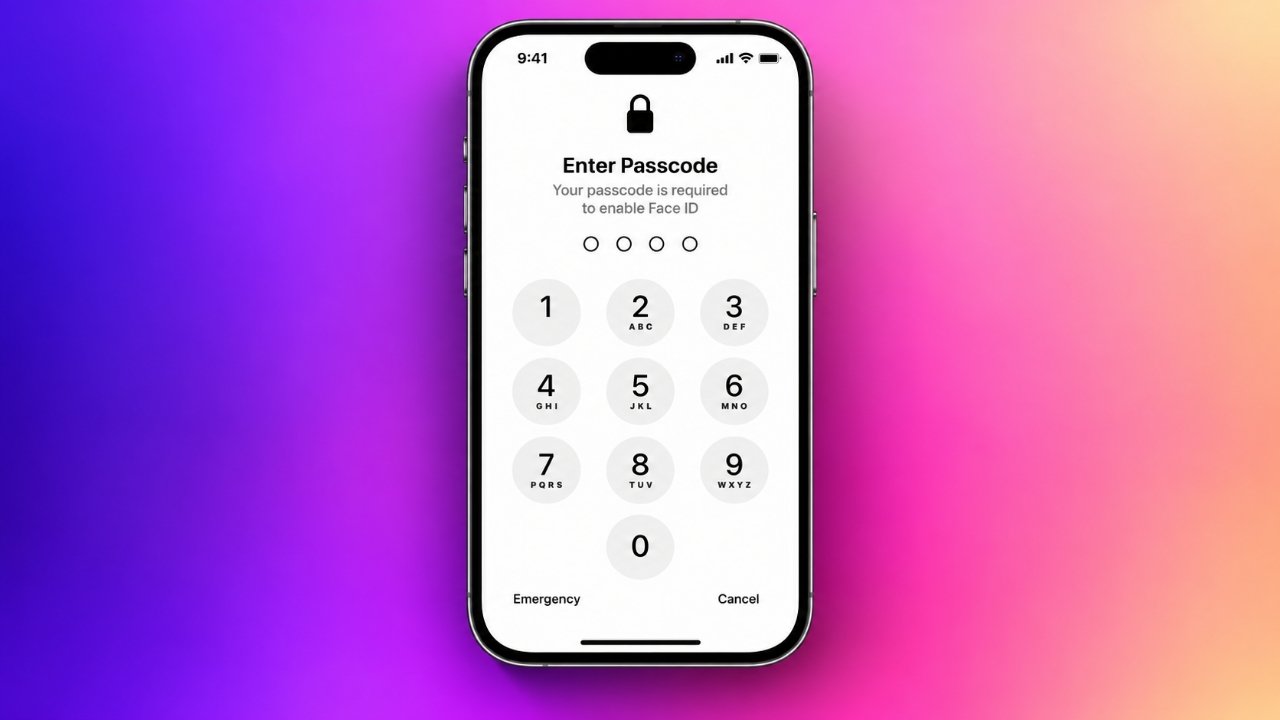
An iPhone passcode is an essential security feature that helps protect your personal data from unauthorized access. It keeps sensitive information, including messages, photos, contacts, and other private details, safer if your device falls into the wrong hands. However, some users may prefer a simpler unlocking experience and want to remove the passcode requirement.
Apple provides an option to turn off the iPhone passcode through the Settings app, provided your device allows this change. Before proceeding, it is worth understanding how disabling this feature affects your privacy and the availability of certain services.
This guide explains how to turn off your iPhone passcode, why the option might be unavailable, and what to do if you cannot remember your current code.
Also Read: How to Change Your Twitch Profile Picture
Steps to Remove the Passcode From Your iPhone
If you know your existing passcode and have permission to change your device settings, you can usually disable it in a few simple steps.
- Open Settings: Find and launch the Settings app on your iPhone.
- Access the passcode menu: Tap Face ID & Passcode on supported models. On iPhones with a Home button and Touch ID, select Touch ID & Passcode.
- Verify your identity: Enter your current device passcode when prompted.
- Locate the removal option: Scroll through the available settings until you find Turn Passcode Off.
- Confirm your decision: Tap the option and follow any confirmation prompts displayed on your screen.
- Complete any additional verification: Depending on your device and configuration, you may be asked to provide further authentication.
After completing these steps, your iPhone will no longer require the device passcode for normal unlocking. The available options may differ depending on your iPhone model, iOS version, and any security restrictions applied to the device.
If you decide to protect your phone with a passcode again, return to the same settings menu and follow the instructions to create one.
What Changes When You Turn Off Your iPhone Passcode?
Removing your passcode does more than simplify the unlocking process. It can also affect the way your device protects personal information and supports certain security features.
Here are the main points to consider before making the change.
Your Personal Information May Be Less Secure
Without a device passcode, your iPhone has less protection against unauthorized physical access. If someone obtains your phone, they may be able to view personal information and use accessible features, depending on your device’s configuration.
This is particularly important if you regularly use your phone for email, banking, social media, or other activities involving sensitive information.
Face ID and Touch ID May Become Unavailable
Face ID and Touch ID work alongside the device passcode as part of Apple’s security system. Disabling the passcode can prevent you from using these biometric unlocking methods until you establish a passcode again.
Some Payment and Security Features May Be Affected
Apple Pay, Wallet, and other security-related functions may require a device passcode. Turning it off can make certain features unavailable or change how they operate.
If you depend on your iPhone for contactless payments or secure authentication, review the possible consequences before changing your settings.
Your Existing Data Is Generally Not Erased
Disabling the passcode is different from resetting your iPhone. The process does not normally delete your installed apps, photos, contacts, or messages.
Nevertheless, it is sensible to maintain a recent backup of important information, especially before making broader changes to your device.
Why Can’t You Turn Off the Passcode on Your iPhone?
If the Turn Passcode Off option appears dimmed or cannot be selected, a security policy or restriction may be preventing the change. The following checks can help you identify the cause.
1. Check Whether Your iPhone Is Managed by an Organization
Devices supplied by employers, schools, or other organizations may have management policies that require a passcode. These rules can prevent users from disabling certain security features.
To review your device management settings:
- Open the Settings app.
- Select General.
- Tap VPN & Device Management.
- Check whether any management profiles are listed.
If the device belongs to your workplace or school, contact the relevant administrator before making changes. Avoid removing a management profile unless you understand its purpose and are authorized to do so.
2. Review Your Screen Time Settings
Screen Time restrictions can affect access to certain device settings, depending on your configuration and iOS version.
To review the available options:
- Open Settings.
- Select Screen Time.
- Tap Content & Privacy Restrictions, if available.
- Review the restrictions that may affect changes to your device settings.
If a parent, guardian, or organization manages these settings, you may need their assistance to make authorized changes.
You can also restart your iPhone and check the passcode menu again. If the option remains unavailable, a management policy or another security requirement may be responsible.
Forgot Your iPhone Passcode? Here’s What to Know
If you cannot remember your current passcode, you generally cannot turn it off through the usual Settings menu. Apple requires the existing passcode to access these controls.
The appropriate next step depends on your iPhone model, iOS version, and circumstances.
In many cases, recovering access to an iPhone with a forgotten passcode requires erasing the device and setting it up again. This process can remove locally stored information, so it is important to understand the consequences before proceeding.
Before starting a reset, consider the following:
- Check your backups: Find out whether you have a recent iCloud or computer backup.
- Understand the data loss risk: Information that was not backed up may not be recoverable after erasing the device.
- Use Apple’s official instructions: Follow the recovery procedure intended for your particular device and software version.
- Prepare your account credentials: You may need your Apple Account credentials to set up the iPhone again, depending on the circumstances.
For reliable guidance, consult Apple’s official support resources rather than using unverified recovery tools or services.
Should You Keep Your iPhone Passcode Enabled?
For most users, keeping a passcode enabled is the safer choice. It provides an additional layer of protection when a phone is lost, stolen, or accessed by someone who should not have it.
Fortunately, removing the passcode is not the only way to make unlocking your iPhone more convenient.
Consider these alternatives before disabling your security settings:
- Use Face ID: Compatible iPhones can recognize your face to make unlocking easier.
- Enable Touch ID: Supported models allow you to unlock the device with your fingerprint.
- Choose a memorable passcode: A code you can remember easily may reduce the frustration of unlocking your phone.
- Review your security settings: Check which authentication options are available for your device and everyday needs.
These alternatives can help you balance convenience with privacy without removing an important security measure.
If you still choose to disable your passcode, be aware that your phone will have less protection while it remains turned off. You can restore passcode protection through the appropriate Settings menu when you are ready.
Frequently Asked Questions
Can I turn off my iPhone passcode without knowing the current code?
No. The standard Settings method requires your existing passcode. If you have forgotten it, follow Apple’s official recovery instructions instead.
Will turning off my passcode delete my photos and contacts?
No. Disabling the passcode does not normally erase your personal data. However, resetting an iPhone to recover access from a forgotten passcode can erase its contents.
Can I use Face ID without an iPhone passcode?
Face ID relies on the device passcode as part of its security system. If you disable the passcode, Face ID may no longer be available until you configure a passcode again.
Why is the option to turn off my passcode greyed out?
Possible reasons include organizational device management, security requirements, or restrictions affecting your settings. Reviewing the relevant configuration menus or contacting your administrator may help identify the cause.
Is it safe to use an iPhone without a passcode?
For most people, keeping a passcode enabled offers better protection. A phone without one may expose accessible personal information if another person gains physical access to the device.
Also Read: How to Set Up and Use Face ID on Your iPhone
Final Thoughts
Turning off the passcode on an iPhone is usually straightforward when you know your current code and your device permits the change. However, the convenience of unlocking your phone without a passcode comes with potential privacy and security trade-offs.
Before removing this protection, consider how you use your iPhone and whether easier access is worth the additional risk. For everyday use, keeping a passcode enabled and using Face ID or Touch ID, where available, is generally the better approach.
If you encounter restrictions or have forgotten your passcode, Apple’s official support guidance is the most reliable place to find the appropriate next steps.
Advertisements