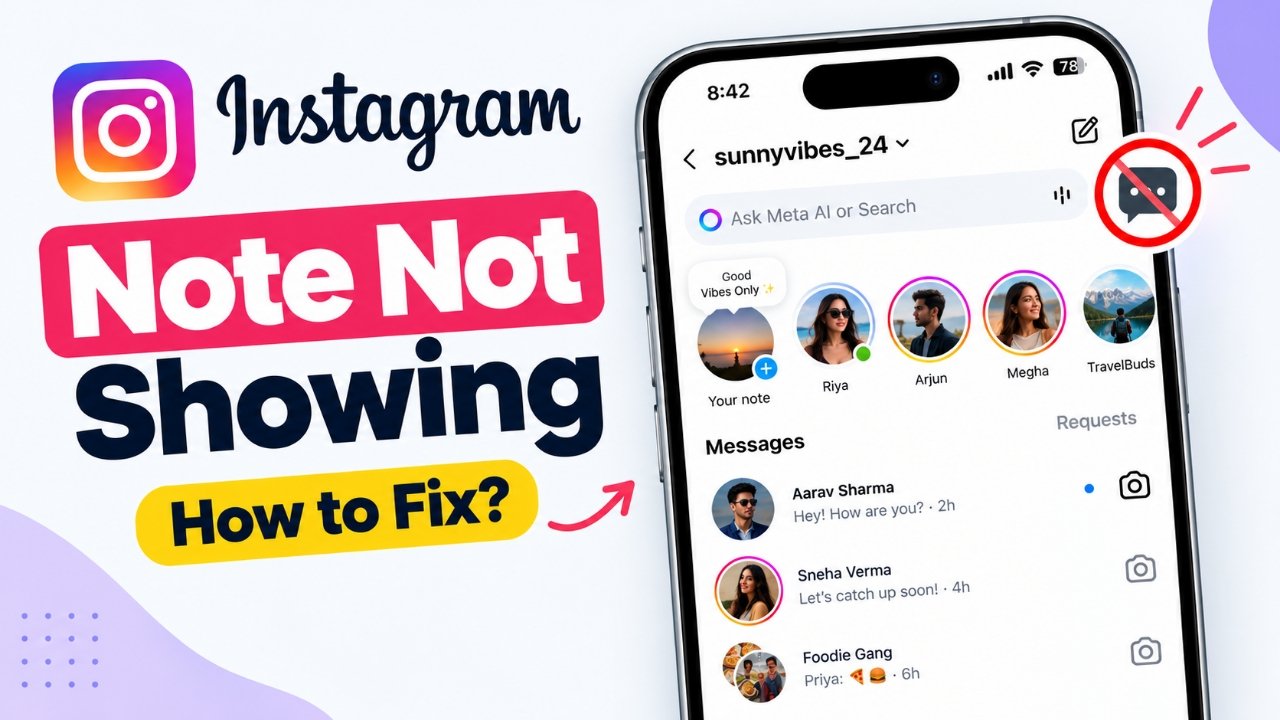
Instagram Notes are a simple way to share short updates with friends directly through your inbox. However, sometimes the Notes section disappears, or you may be unable to see a note shared by someone else. This can happen because of an outdated app, a temporary technical issue, an expired note, or privacy settings.
The good news is that several troubleshooting methods can help you identify the cause and resolve the issue. In this guide, you will learn why Instagram Notes are not showing, how to restore the feature when possible, and what to do if the problem continues.
Also Read: Facebook Your Algorithm: How to Customize Your Feed and Reels Recommendations
Why Are Instagram Notes Not Showing?
Before trying different solutions, it helps to understand why Instagram Notes might be missing from your account.
Here are some common reasons:
- Outdated Instagram app: An older version may have bugs or may not support certain features properly.
- Expired notes: Instagram Notes remain available for up to 24 hours before disappearing.
- Audience restrictions: Someone may have shared a note only with a selected audience, such as their Close Friends.
- Muted notes: If you muted someone’s notes, their updates may no longer appear in your inbox.
- Temporary app errors: A minor software glitch can prevent Instagram from displaying the Notes section correctly.
- Internet connection problems: An unstable connection may stop parts of your inbox from loading.
- Limited feature availability: Instagram does not make every feature available to every account at the same time.
- Account-specific issues: Certain account settings or technical problems may affect how features appear.
Identifying the likely cause can save time and help you choose the most appropriate solution.
8 Ways to Fix Instagram Notes Not Showing
Try the following methods in order, starting with the simplest options.
1. Update Instagram to the Latest Version
Using an outdated version of Instagram can sometimes cause features to disappear or stop working correctly. Updating the app is a good first step.
For Android users:
- Open the Google Play Store.
- Search for Instagram.
- Open the app’s store page.
- Tap Update if the option is available.
- Open Instagram again and check your inbox.
For iPhone users:
- Open the Apple App Store.
- Search for Instagram.
- Open its app page.
- Tap Update if an update is available.
- Launch Instagram and check whether Notes appear.
If the app is already up to date, continue to the next solution.
2. Restart Instagram and Check Your Internet Connection
Sometimes Instagram fails to load certain sections because of a temporary app issue or a weak internet connection.
Start by closing Instagram completely. Remove it from your recent apps, wait a few seconds, and open it again.
Next, check your internet connection. If you are connected to Wi-Fi, switch to mobile data. If you are using mobile data, try a reliable Wi-Fi network instead.
You can also restart your phone if the Notes section remains missing.
After reconnecting, open your Instagram inbox and check the area at the top where Notes normally appear.
3. Check Whether You Muted Someone’s Notes
If you can see Notes from other people but cannot find updates from one particular account, you may have muted that person’s notes.
Instagram allows users to mute certain content without unfollowing an account. This could explain why one person’s Notes are missing.
To check the setting:
- Open Instagram and visit the person’s profile.
- Tap Following, if this option is available.
- Select Mute.
- Look for the Notes setting.
- If Notes are muted, turn the setting off.
Return to your inbox and check again. Menu names may vary slightly depending on your Instagram version.
4. Check Whether the Note Has Expired or Has a Limited Audience
Not every missing note indicates a technical problem.
Instagram Notes are temporary updates that remain visible for up to 24 hours. After that period, they disappear automatically unless the person shares a new one.
The person posting a note can also choose its audience. Depending on the available sharing options, a note may be visible only to selected people, including members of a Close Friends list.
If you cannot see a friend’s note, consider these possibilities:
- The note was posted more than 24 hours ago.
- The person deleted the note before it expired.
- You are not included in the audience they selected.
- The person has not shared a new note yet.
If the note is restricted to an audience that does not include you, changing your app settings will not make it visible.
5. Log Out and Sign In Again
If Instagram Notes are still missing, signing out and signing back in may help refresh your account session.
Before logging out, make sure you know your login details and can access any verification method required to sign in again.
Follow these steps:
- Open Instagram and go to your profile.
- Tap the three-line menu in the upper-right corner.
- Open the account settings and look for the logout option.
- Log out of your account.
- Sign in again using your usual credentials.
- Open your inbox and check the Notes section.
This method may resolve certain session-related problems, although it will not restore a feature that is unavailable to your account.
6. Clear the Instagram Cache on Android or Offload the App on iPhone
Temporary app files can occasionally contribute to performance issues. Depending on your device, clearing the cache or reinstalling the app may help.
On Android
- Open your phone’s Settings.
- Select Apps or App Management.
- Find and select Instagram.
- Open Storage or Storage and cache.
- Tap Clear cache, if available.
- Reopen Instagram and check your inbox.
Avoid selecting Clear data or Clear storage unless you understand that doing so may remove locally stored app information and require you to sign in again.
On iPhone
iOS does not provide the same dedicated Instagram cache-clearing option found on many Android devices. You can try offloading the app instead.
- Open Settings on your iPhone.
- Select General.
- Tap iPhone Storage.
- Find Instagram.
- Choose Offload App, if available.
- Reinstall Instagram using the option shown on the screen.
Offloading is designed to remove the app while retaining its documents and data. However, it does not guarantee that Instagram Notes will return.
7. Check Your Account Type and Feature Availability
Instagram supports personal, creator, and business accounts, but features and settings can vary across accounts and app versions.
If Instagram Notes are missing, switching your account type is not a guaranteed solution. Before changing anything, check whether the feature is available through your current account and whether Instagram has announced any relevant limitations.
You can review your account type in your profile settings. However, do not switch account types simply because Notes are unavailable unless you have a specific reason to do so.
Changing account types can affect access to certain tools and settings, so review the implications before making a change.
If all the usual troubleshooting steps fail, the issue may be related to feature availability rather than your account type.
8. Report the Issue to Instagram
If none of the previous solutions work, report the missing Notes feature directly to Instagram.
Providing a clear description can help Instagram understand what is happening on your account.
To report the problem:
- Open Instagram and visit your profile.
- Tap the three-line menu.
- Find Help in the settings menu.
- Select Report a problem.
- Describe the issue and explain when it started.
- Attach a screenshot if it helps demonstrate the problem.
- Submit your report.
Depending on your app version, additional reporting options may be available.
After submitting the report, keep Instagram updated and check periodically to see whether the feature returns. A report does not guarantee an immediate fix, but it gives you a way to notify Instagram about the issue.
How to Leave a Note on Instagram
If you can see the Notes section but are unsure how to use it, follow these steps to create your own note.
- Open Instagram on your phone.
- Tap the Messages icon to access your inbox.
- Look for your profile picture in the Notes area at the top.
- Tap your picture or the option to create a note.
- Enter a short text update of up to 60 characters.
- Choose the audience available to you.
- Tap Share.
Your note should appear in the Notes area for the selected audience, provided the feature is available on your account.
If the Notes area is completely missing, return to the troubleshooting methods above.
When Should You Wait Instead of Trying More Fixes?
Sometimes, there is nothing wrong with your phone or Instagram settings.
Instagram may be experiencing a temporary service problem, or the Notes feature may not yet be available to your account. In these situations, repeatedly changing settings or reinstalling the app may not help.
Consider waiting a little while and checking again later if:
- Your Instagram app is already updated.
- Your internet connection is working normally.
- You have checked your muted Notes settings.
- Other parts of Instagram are functioning as expected.
- The Notes feature remains unavailable despite basic troubleshooting.
Avoid third-party applications that claim to unlock hidden Instagram features. Such services may request unnecessary account permissions or login details and could put your account security at risk.
Frequently Asked Questions
Why can my friend see Instagram Notes, but I cannot?
There are several possible reasons. Your friend may have access to a feature that is not yet available to your account, or your app may need an update. The note could also have a limited audience, expired, or be affected by a temporary technical issue.
How long do Instagram Notes last?
Instagram Notes remain visible for up to 24 hours. They may disappear sooner if the person who posted them deletes them. A new note can replace the previous one.
Why can I not see one person’s Instagram Notes?
The person may have shared the note with a selected audience, the note may have expired, or you may have muted their Notes. Check your mute settings and consider asking the person whether the note is still available.
Can I use Instagram Notes on a computer?
Instagram’s website and mobile apps may not offer identical Notes functionality. Available actions can vary by platform and app version, so using the official Android or iPhone app is a reasonable first step if you cannot find a Notes option on your computer.
Does switching to a personal account fix Instagram Notes?
Not necessarily. Switching account types is not a reliable or universal fix because missing Notes may result from temporary glitches, account-specific availability, or other technical issues. Check the simpler solutions first.
Why did Instagram Notes suddenly disappear?
Notes may disappear because their 24-hour display period ended, the person deleted them, or a temporary app issue affected the inbox. If the entire Notes section disappears, update Instagram, restart the app, and check whether the feature is available to your account.
Also Read: How to Turn Off Active Status on Instagram in 2026
Final Thoughts
When Instagram Notes are not showing, start with the basics: update the app, restart it, and check your internet connection. If only one person’s note is missing, review your mute settings and remember that Notes can expire or be shared with a limited audience.
If the problem affects the entire Notes section, clearing the app cache on Android, offloading Instagram on iPhone, or reporting the issue may help. However, no single method works for every account.
If the feature is temporarily unavailable or has not reached your account, waiting may be the only practical option. Stick to Instagram’s official app and support tools, and avoid third-party services that promise guaranteed access to missing features.
Advertisements