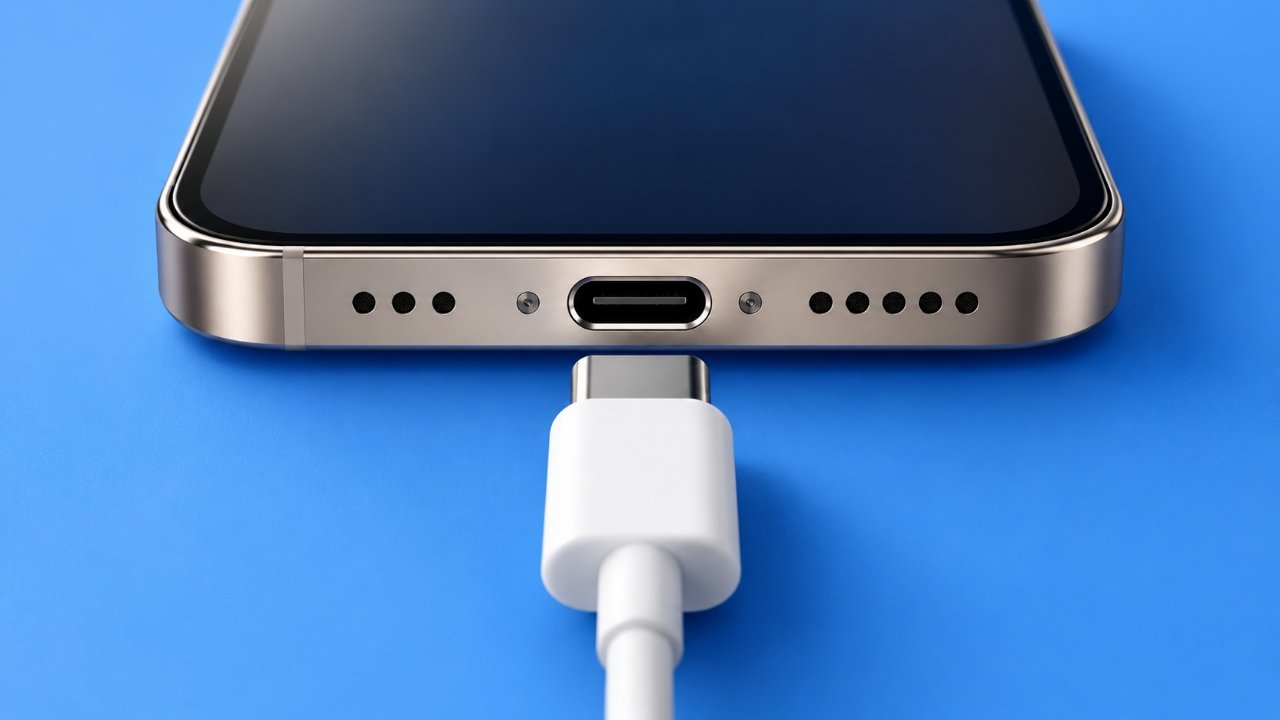
When your iPhone USB-C port stops charging, it can quickly become an inconvenience. Whether your battery is running low or your phone refuses to recognize the charging cable, finding the cause is the first step toward resolving the issue.
Fortunately, a charging problem does not always mean your iPhone needs an expensive repair. A worn-out cable, an unsuitable power adapter, debris inside the port, or a temporary software issue may be responsible.
Before visiting a repair center, try these seven troubleshooting methods. They can help you identify common charging problems while reducing the risk of accidentally damaging your device.
Also Read: How to Set Up and Use Face ID on Your iPhone
Quick Overview: What to Check First
If your iPhone is not charging through its USB-C port, start with these basic checks:
- Test your charging cable and power adapter.
- Connect the charger to another working electrical outlet.
- Restart your iPhone and check for available iOS updates.
- Inspect the USB-C port for visible dust or debris.
- Disconnect the charger if moisture is detected.
- Look for signs of physical damage or a loose connection.
- Seek professional assistance if the problem continues.
Working through these steps in order can help you determine whether the issue involves your accessories, software, or the phone itself.
1. Test Your Charging Cable and Power Adapter
Your charging accessories are among the first things worth checking when an iPhone refuses to charge. A cable with damaged insulation or a faulty connector may prevent electricity from reaching the device properly.
Begin by examining both ends of the cable. Check for bent connectors, frayed sections, discoloration, or other visible damage. Also, inspect the power adapter for signs of wear.
Next, try a different compatible USB-C cable while keeping your original adapter. If that does not help, test another suitable adapter.
For the most reliable results, choose accessories that comply with Apple’s compatibility requirements and come from reputable manufacturers.
What to do:
- Replace cables that have exposed wires or damaged connectors.
- Check whether the USB-C plug fits properly into your iPhone.
- Test a second compatible cable.
- Try a different USB-C power adapter.
- Stop using any accessory that becomes unusually hot or shows signs of damage.
If your iPhone begins charging after you replace one accessory, you have likely identified the source of the problem.
2. Try a Different Electrical Outlet
A charging setup can appear faulty even when the actual problem comes from the power source.
For example, a wall outlet may not be supplying power correctly, or a power strip may have developed a fault.
To check, connect your charger to another outlet that you know works. If you are using an extension board, try a suitable wall outlet instead.
Make sure the power adapter is firmly connected and that the outlet can safely supply electricity.
If your iPhone starts charging from the alternative outlet, investigate the original power source. If nothing changes, continue to the next troubleshooting step.
3. Restart Your iPhone and Check for iOS Updates
Occasionally, a temporary software problem can interfere with normal device operation. Restarting your iPhone is a simple way to rule out certain temporary glitches before considering hardware repairs.
How to restart your iPhone
For most recent iPhone models with Face ID:
- Press and hold the Side button and either Volume button until the power-off slider appears.
- Drag the slider to turn off your phone.
- Wait about 30 seconds.
- Press and hold the Side button until the Apple logo appears.
- Once the phone has restarted, reconnect the charging cable.
If your iPhone uses a different button configuration, follow the restart instructions for your particular model.
You should also check whether an iOS update is available. Open Settings > General > Software Update and follow the on-screen instructions if an update is offered.
Software updates can address certain system issues, although they will not repair a physically damaged charging port.
4. Inspect and Clean the USB-C Port Carefully
Dust, pocket lint, and other small particles can accumulate inside a charging port over time. When debris builds up around the connector, the cable may not fit correctly or establish a reliable connection.
Before attempting any cleaning, disconnect the charging cable and turn off your iPhone.
Use good lighting to examine the port from the outside. Avoid pushing anything into the connector, as the internal contacts are delicate.
Cleaning precautions to remember
- Never use needles, pins, paper clips, or other metal objects.
- Do not pour water or cleaning liquids into the port.
- Avoid forcing cotton swabs or other objects inside the connector.
- Do not use compressed air to blow debris into the opening.
- Stop if you notice bent contacts, corrosion, or persistent obstructions.
Apple recommends following its device-specific cleaning guidance rather than experimenting with tools that could damage internal components.
If the port appears heavily blocked and you cannot safely remove the obstruction, let a qualified technician inspect it.
After addressing any accessible external debris according to the manufacturer’s guidance, reconnect the cable and check whether charging works normally.
5. Check for Moisture Before Charging
Moisture is another possible reason an iPhone USB-C port may stop accepting a wired connection. Some iPhone models can display a liquid-detection alert when moisture is detected in the connector or on the cable.
If you see this warning, disconnect the cable immediately. Do not attempt to override the warning simply to continue charging.
Instead, follow Apple’s recommended liquid-detection procedure:
- Disconnect the cable from your iPhone and the power adapter.
- Place the phone in a dry location with good airflow.
- Allow time for the connector to dry naturally.
- Avoid external heat, compressed air, and inserting objects into the port.
- Reconnect the cable only after the connector and cable are dry.
Drying may take several hours and, in some cases, up to 24 hours.
Do not assume the phone is completely dry simply because the outside feels dry. If the warning continues to appear or the device shows signs of liquid damage, contact Apple Support or an authorized service provider.
6. Look for Physical Damage or a Loose USB-C Connection
If different cables and adapters produce the same result, the charging port itself may be damaged.
Drops, impacts, repeated strain on the cable, or wear over time can affect the connector. Damaged internal contacts may prevent your iPhone from charging consistently.
Look for these warning signs:
- The cable repeatedly slips out of the port.
- Charging starts and stops without an obvious reason.
- The connection works only when the cable is held at a particular angle.
- Your iPhone fails to recognize a connected computer.
- Several known-working charging accessories produce the same problem.
A loose connection does not automatically prove that the port is broken. Debris or a faulty cable can produce similar symptoms.
However, avoid repeatedly moving or bending the cable to maintain a connection. This may worsen existing damage.
If you suspect physical damage, stop using the affected accessories and arrange a professional inspection rather than attempting to repair the connector yourself.
7. Test a Different Charging Setup Before Booking a Repair
Before concluding that your iPhone needs servicing, perform one final check using accessories you know are working properly.
Try a compatible USB-C cable, a suitable power adapter, and a reliable electrical outlet. If possible, check whether those accessories can charge another compatible device.
Allow a few minutes for the iPhone to respond, particularly if its battery has been completely depleted.
The results can help narrow down the possibilities:
| What you notice | Possible explanation |
|---|---|
| A different cable fixes the problem | The original cable may be faulty. |
| A different adapter restores charging | The original adapter may be defective. |
| Another outlet works normally | The original power source may be the issue. |
| Charging fails with several working accessories | The iPhone may have a port or hardware problem. |
| A liquid-detection alert appears | Moisture may be present in the connector or cable. |
| Charging repeatedly disconnects | The cable, port, or internal connection may need inspection. |
These observations are useful clues rather than definitive diagnoses. A technician may need to examine the device to determine the exact cause.
When Should You Get Your iPhone Repaired?
If the USB-C port still does not work after safe troubleshooting, professional diagnosis is the next sensible step.
A technician can examine the charging connector, check for internal damage, and determine whether the problem requires cleaning, component replacement, or another repair.
Where can you get your iPhone serviced in India?
You can start by contacting Apple Support or visiting Apple’s official support website to explore the available service options.
Depending on your location and the services offered, you may be able to arrange a repair through an Apple Store or an Apple Authorized Service Provider.
Before approving any repair, ask about:
- The estimated repair cost.
- Whether the issue is covered by your warranty or AppleCare+ plan.
- The parts and repair methods that will be used.
- The expected turnaround time.
- Any service warranty provided after the repair.
Warranty coverage and repair eligibility depend on the circumstances, the device, and the applicable terms. Accidental damage and liquid damage may be treated differently from manufacturing defects.
Independent repair shops may also offer servicing, but check their qualifications, parts quality, and repair warranty before handing over your device.
Avoid opening the iPhone or attempting to replace the charging port yourself unless you have the appropriate training and equipment.
Frequently Asked Questions
Why is my iPhone USB-C port not charging?
Common causes include a damaged cable, a faulty power adapter, debris in the connector, moisture detection, software issues, or physical damage. Testing compatible accessories and checking the port for visible problems can help narrow down the cause.
Can I use a toothbrush to clean my iPhone charging port?
It is best not to insert a toothbrush or other cleaning tool into the port unless Apple’s instructions for your specific device explicitly permit the method. The connector contains delicate components that can be damaged by pressure or friction. Follow the manufacturer’s cleaning guidance or ask a qualified technician for assistance.
Why does my iPhone charge slowly through USB-C?
Slow charging may result from a low-power adapter, an unsuitable cable, the phone’s temperature, or normal battery-management behavior. Running demanding apps while charging can also affect how quickly the battery percentage increases. Test a compatible charging setup and allow the device to cool naturally if it is unusually warm.
Why does my USB-C cable feel loose when connected?
Possible causes include debris inside the port, wear on the cable connector, or damage to the charging port. Avoid forcing the plug into place or repeatedly adjusting it while charging. Try another compatible cable and arrange an inspection if the connection remains loose.
Can Apple repair or replace a damaged USB-C charging port?
Apple or an authorized service provider can assess the problem and explain the available repair options. Whether the port can be repaired separately, whether a larger component needs replacement, and how much the service costs depend on the device and the nature of the damage.
Contact Apple Support for an assessment and an estimate before approving the repair.
Should I keep charging my iPhone if the port is wet?
No. Disconnect the cable if moisture is detected and allow the connector to dry naturally. Do not use heat, compressed air, or objects to speed up the process. Follow Apple’s liquid-detection instructions before attempting wired charging again.
Also Read: How to Delete WhatsApp Call History on Android and iPhone
Final Thoughts
An iPhone USB-C port that refuses to charge can be frustrating, but the cause is not always serious. Faulty accessories, unreliable power sources, software glitches, and debris are all worth checking before arranging a repair.
Start by testing another cable, adapter, and outlet. Restart your iPhone, check for available iOS updates, and inspect the connector without inserting tools into it. If moisture or physical damage is suspected, take the appropriate precautions rather than continuing to charge the device.
If the problem persists after these checks, professional diagnosis can help identify the underlying issue and determine the most appropriate solution.
Advertisements